Setting Fields
Choose where each field's value comes from
The Set Field, Create Object, and Duplicate steps change fields on a record. For each field, choose where its value comes from:
- Set: a value you choose in the step, like a status of "Done", or today's date.
- Copy: a value copied from another record, like the client of a task's project.
- Ask: asked for when the workflow is clicked.
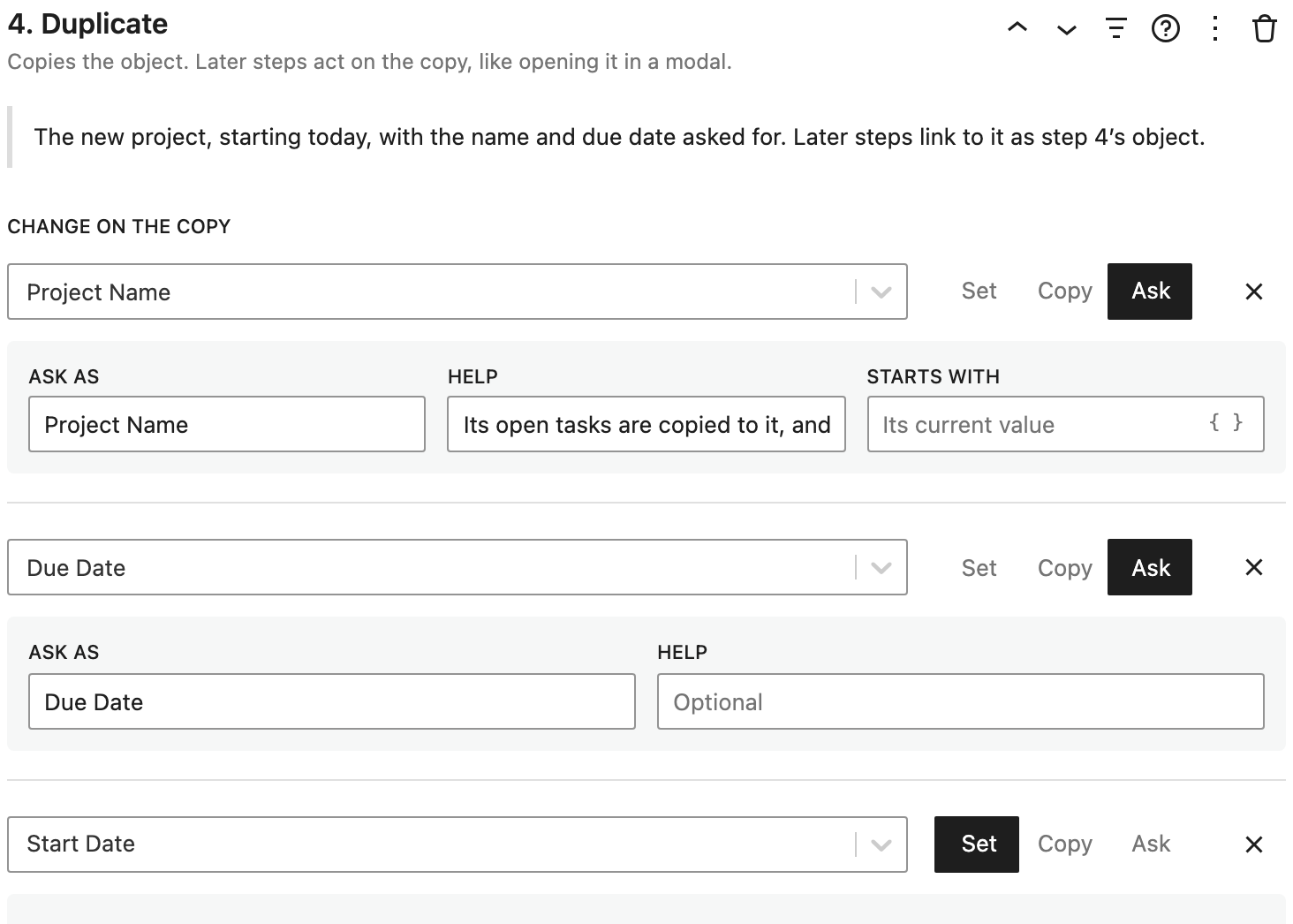
Click Add Field to add another field, and the × beside a field to remove it.
Set
What you can set depends on the field:
- Text: any text, which can include placeholders. In a For Each File loop, it can also be the file's File Title or File Name.
- Yes-No: Checked or Unchecked.
- Dropdown and Radio: one of the choices, or None.
- Checkboxes and Multi-Dropdown: Add or Remove choices, keeping the rest, Replace With exactly these choices, or Clear them.
- Date: Now, a number of days, weeks, or months From Now, or From Its Date (from the field's current date, like pushing a due date back a week), or No Date.
- EA User: the Current User, a specific person, or Nobody.
- Number and Money: a value.
- File, Image, and Media: the Uploaded File in a For Each File loop, or No File.
- Relationships: which record to link to:
- Nearest … Around the Workflow: the closest record of that type around the workflow, like the project a list of tasks is on.
- The Page's …: the record of the page.
- The … the Workflow Started With: the record the workflow is shown for.
- A Step's …: a record an earlier step acted on or created, like the project step 4 copied.
- A Specific …: a record you pick.
- None: removes the link.
Copy
Copies the value from another record. Choose:
- From: which record to start from, like the nearest task around the workflow.
- Field to Copy: the field to copy. It can be on that record, or on a record it's related to, like the task's project's client.
For example, an "Add Note" workflow on a task can copy the task's project and client onto the new note, so it shows up on all three.
Ask
Asks for the value when the workflow is clicked. Choose:
- Ask As: the label in the form.
- Help: optional text under it.
- Starts With: for text fields, what it's filled in with, like
{field:name}. By default, the field's current value.
When the steps ask for any fields, a Title of the Form Asking for Values setting appears, like "Log a Call with {field:name}".
Every field the steps ask for is asked in one form, before anything changes. Fields for different records are grouped, like the contact's fields and the new activity's. Cancelling the form changes nothing. Fields for steps that won't run, because of a condition, aren't asked for.
Placeholders
Text can include placeholders, filled in when the workflow runs:
{field:name}: a field of the record the step acts on, like its name. Before a step creates a record, it reads the record around the workflow, like the page's.{step4:field:name}: a field of the record step 4 acted on or created. Placeholders like this are updated when steps move.{done},{skipped},{failed}, and{total}: in a Show Notice after a loop, how many records it ran for.
Type { in a text box, or click its { } button, to pick a placeholder from a list of fields.
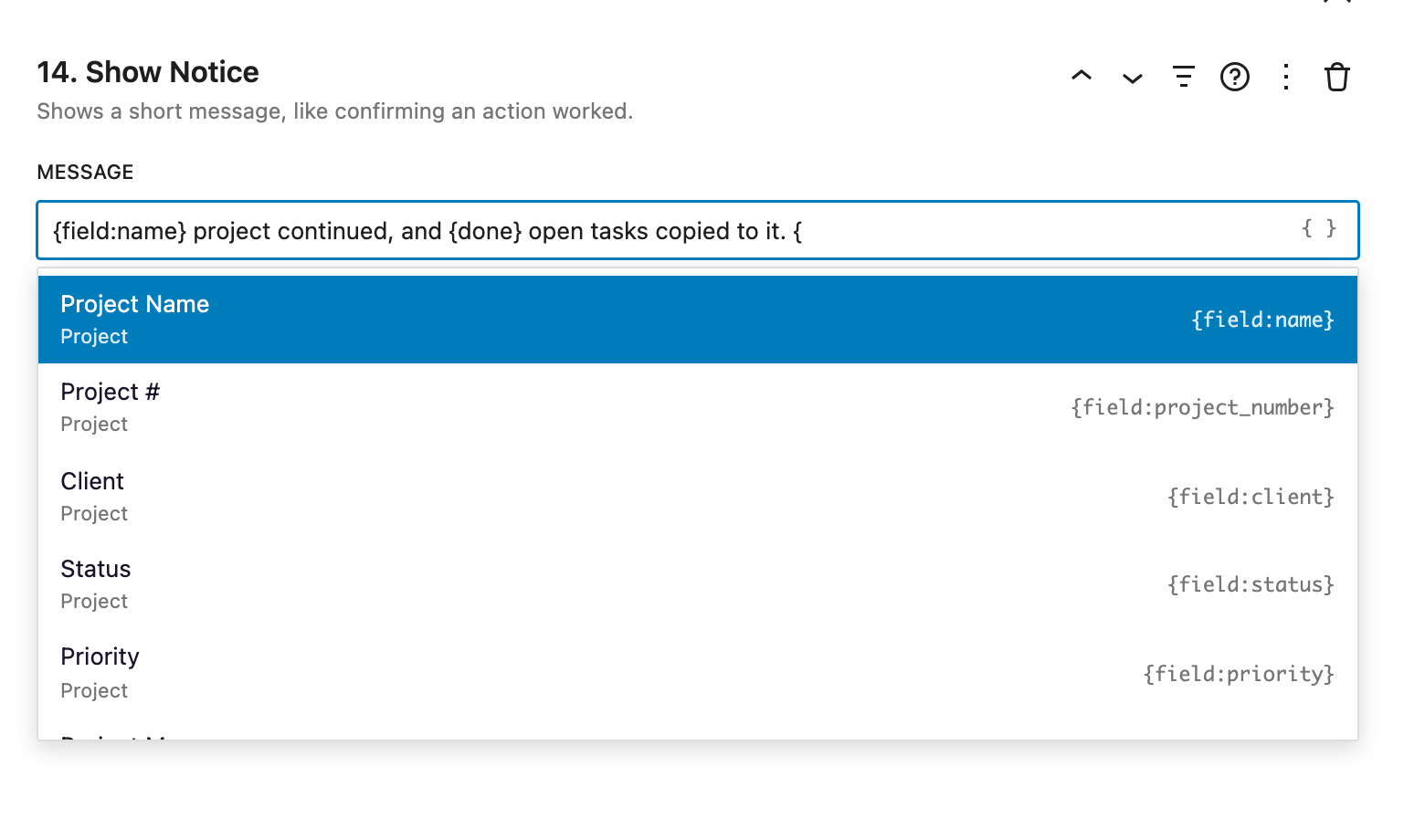
Placeholders that won't be filled in, like a field the record doesn't have, are flagged under the text box and on the step.
Saving
Set Field doesn't save the record. Follow it with a Save step, unless something else saves it, like the modal it's in or the person editing the page. Create Object and Duplicate save the values as the record is created.