Editing Steps
Build and understand a workflow's steps
A workflow's steps are edited in the steps editor. To open it, select the workflow and click Edit Workflow in the block toolbar or the sidebar's Workflow panel. Clicking a step in the sidebar opens the editor on that step.
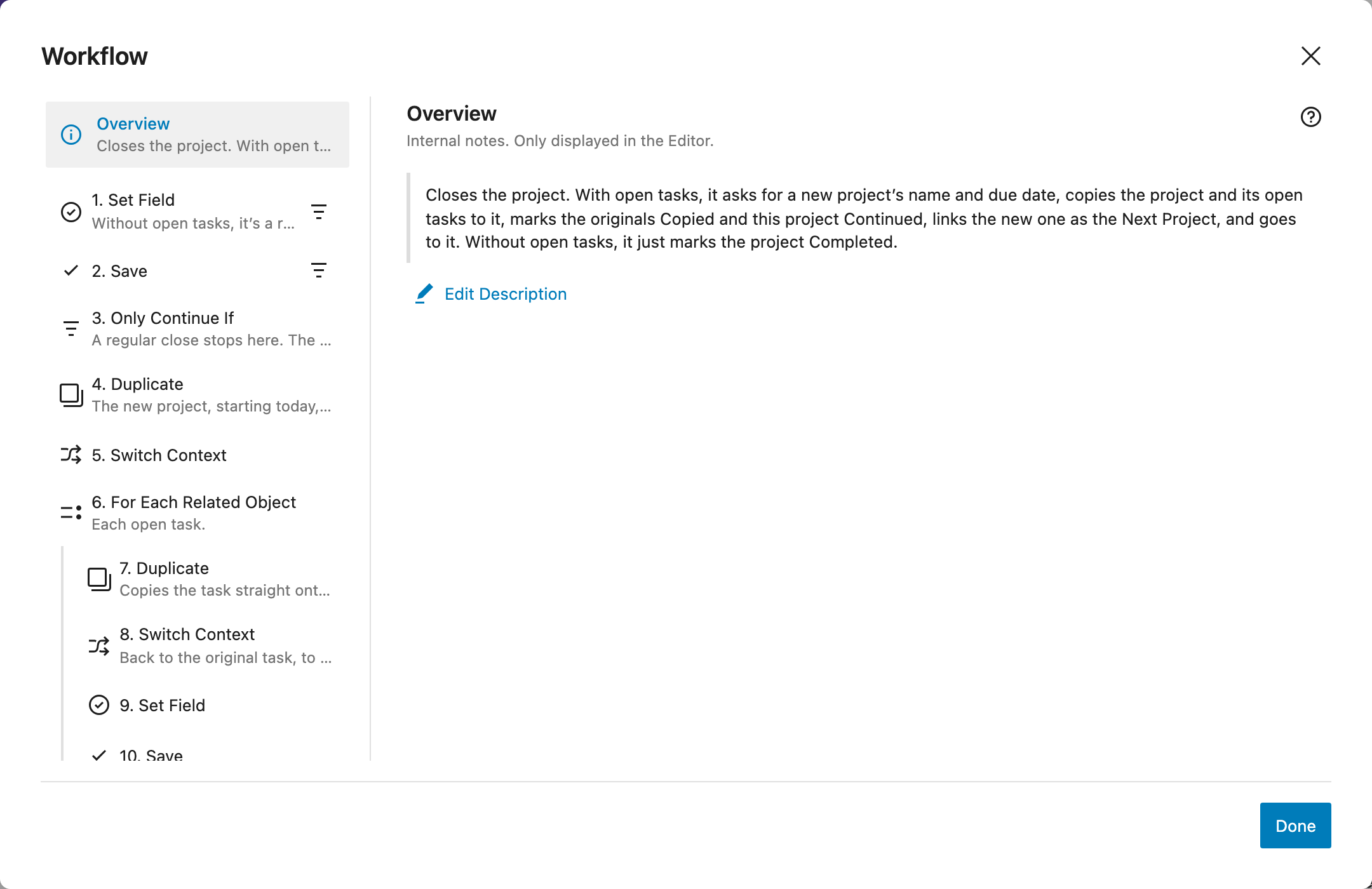
The editor lists the steps on the left, and shows the selected step's settings on the right. Changes apply as you make them, so you can undo them with the editor's Undo, like any other change to your layout. Click Done when you're finished, then save your layout.
Overview and description
The editor opens on the Overview. Use it to describe what the workflow does, and why, like "Closes the project. With open tasks, copies them to a new project." Click Add Description or Edit Description to write it.
The description is only shown in the editor, for people editing the workflow. It also appears in the sidebar's Workflow panel, and when you hover over the workflow in the layout editor.
Adding steps
- Click Add Step under the list to add a step at the end.
- To add a step in the middle, open a step's options (⋮) and choose Add Step After.
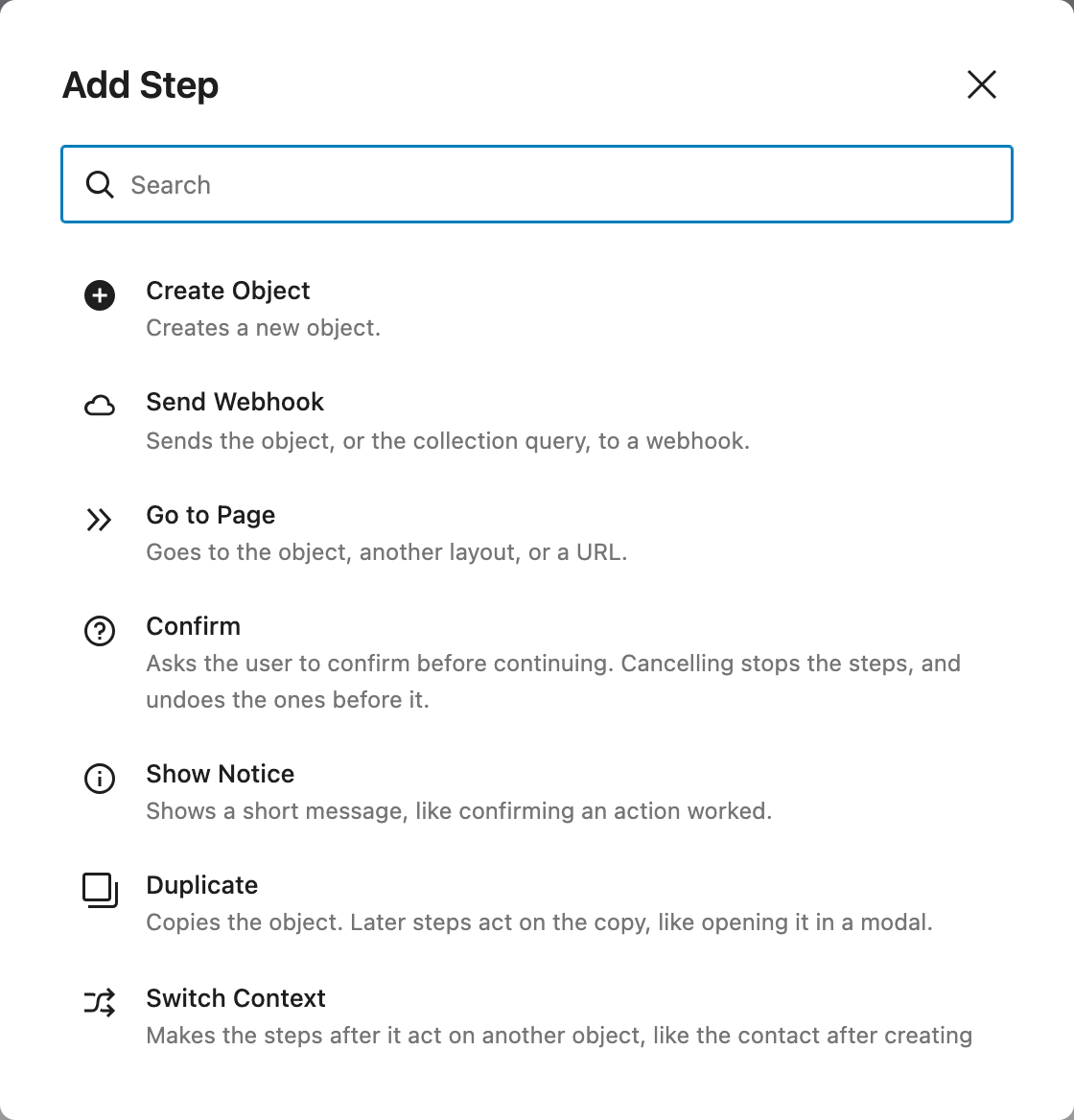
Only steps that make sense at that point are offered. For example, nothing can come after Go to Page, since the page changes. When there are many steps to choose from, a searchable list opens. Type to filter it, and press Enter to add the first match.
A step's settings
Select a step to see its settings. The header shows its name and what it does, with buttons to:
- Move it up or down.
- Add a condition (the filter icon), if it doesn't have one. See Conditions.
- Show help for it (the ? icon).
- Open its options (⋮).
- Remove it (the trash icon).
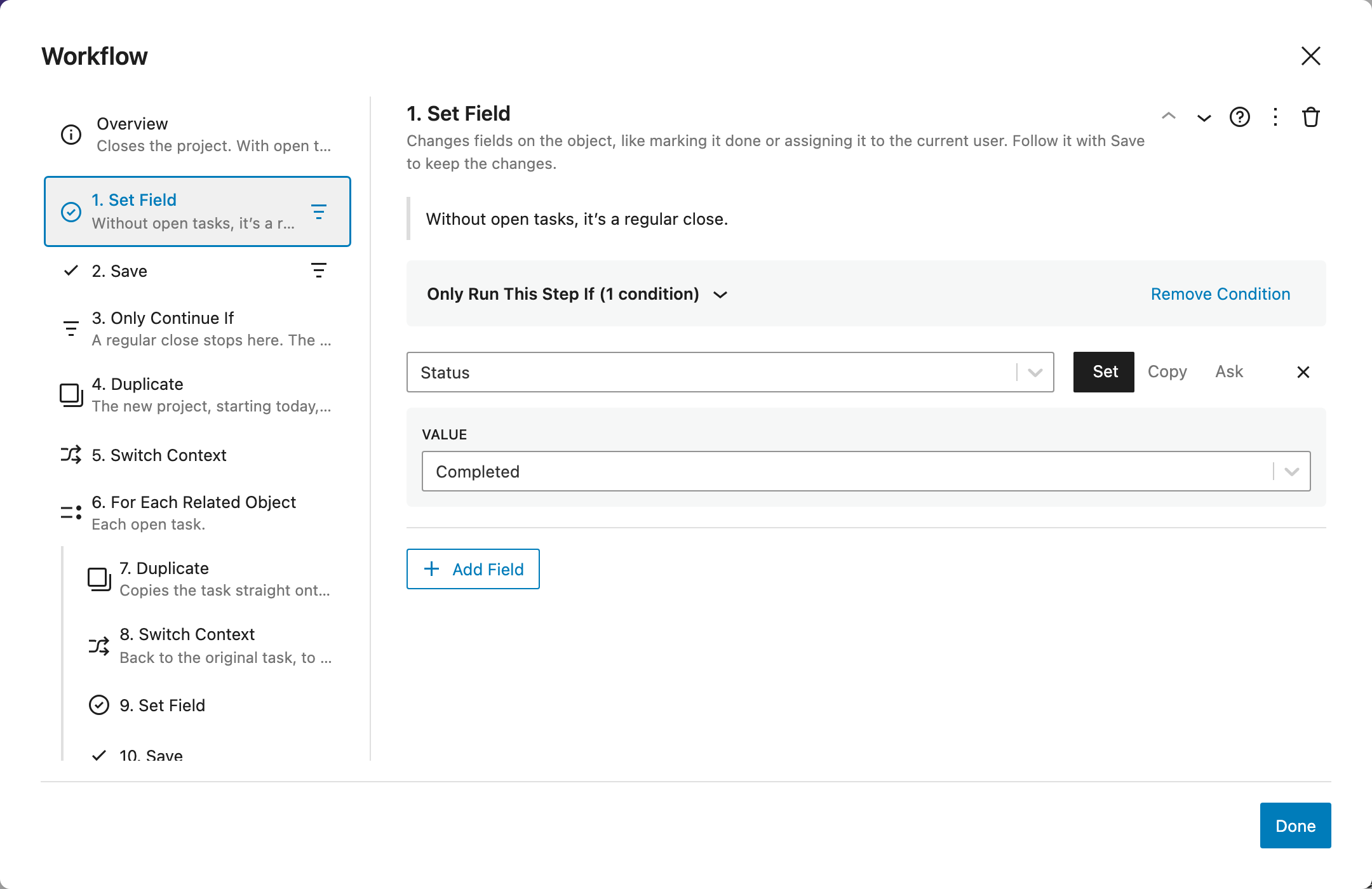
Below the header are the step's note and condition, if it has them, then its own settings. Each step's settings are described in Steps.
Step options
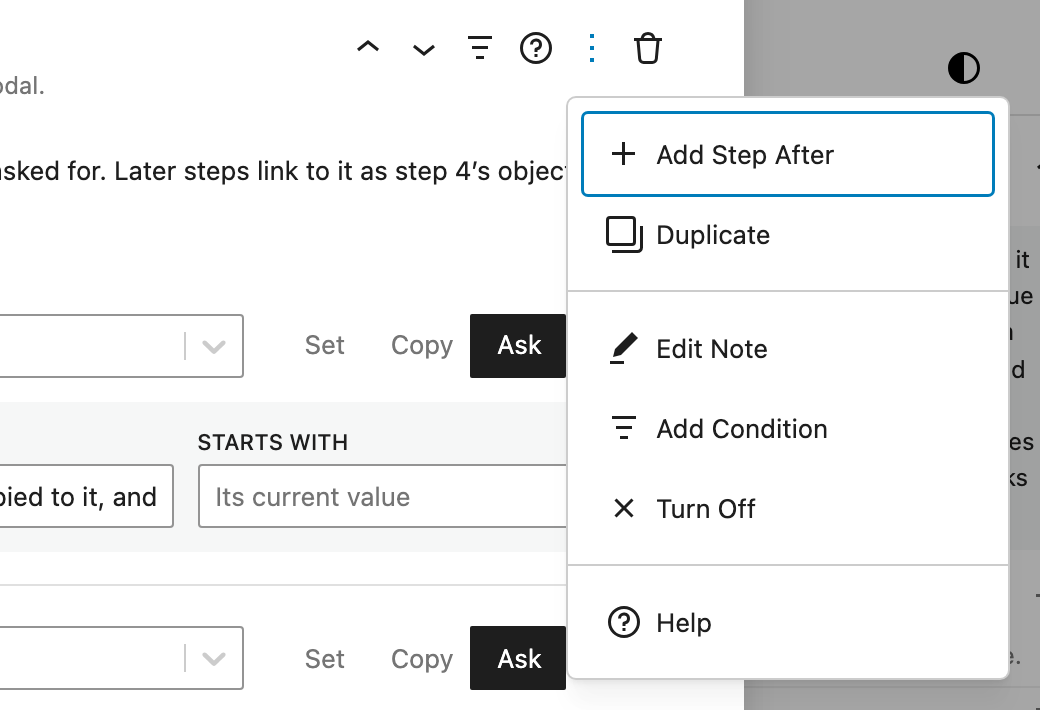
The ⋮ menu has:
- Add Step After: adds a step right after this one.
- Duplicate: adds a copy of this step after it, with its settings, condition, and note.
- Add Note or Edit Note: writes a note about the step.
- Add Condition: only runs the step when records match filters.
- Turn Off or Turn On: skips the step without removing it.
- Help: shows help for the step.
Rearranging steps
Move a step with the up and down arrows in its header, or drag it in the list to where it should go.
Steps can refer to earlier steps by number, like Step 4's Project, a Switch Context step that switches to step 6's record, or a placeholder like {step4:field:name}. When you move, add, duplicate, or remove steps, these references are updated, so they keep pointing at the same step. If you remove a step that others refer to, those steps are flagged so you can fix them.
Turning steps off
Turning a step off keeps it, with its settings, but skips it when the workflow runs. The steps after it act as if it weren't there. Turned-off steps are crossed out, with an Off badge. Use it to try the workflow without a step, or to keep a step for later.
Loops (For Each steps and End For Each) can't be turned off, since the steps inside them would then run once instead.
Notes
Choose Add Note in a step's options to write a note about it, like why it's there. Notes are only shown in the editor. They appear in the step's settings, under the step in the list, and in the sidebar's Workflow panel.
Steps that need attention
A warning icon marks steps that won't work as they are. Hover over it, or select the step, to see why. For example:
- The step can't follow the step before it.
- A setting is missing, like a Set Field step with no fields, a notice without a message, or a link without a URL.
- It refers to a step that was removed, runs after it, is turned off, or doesn't act on a record.
- It filters by a field that isn't searchable, which would match every record.
- A placeholder in its text won't be filled in.
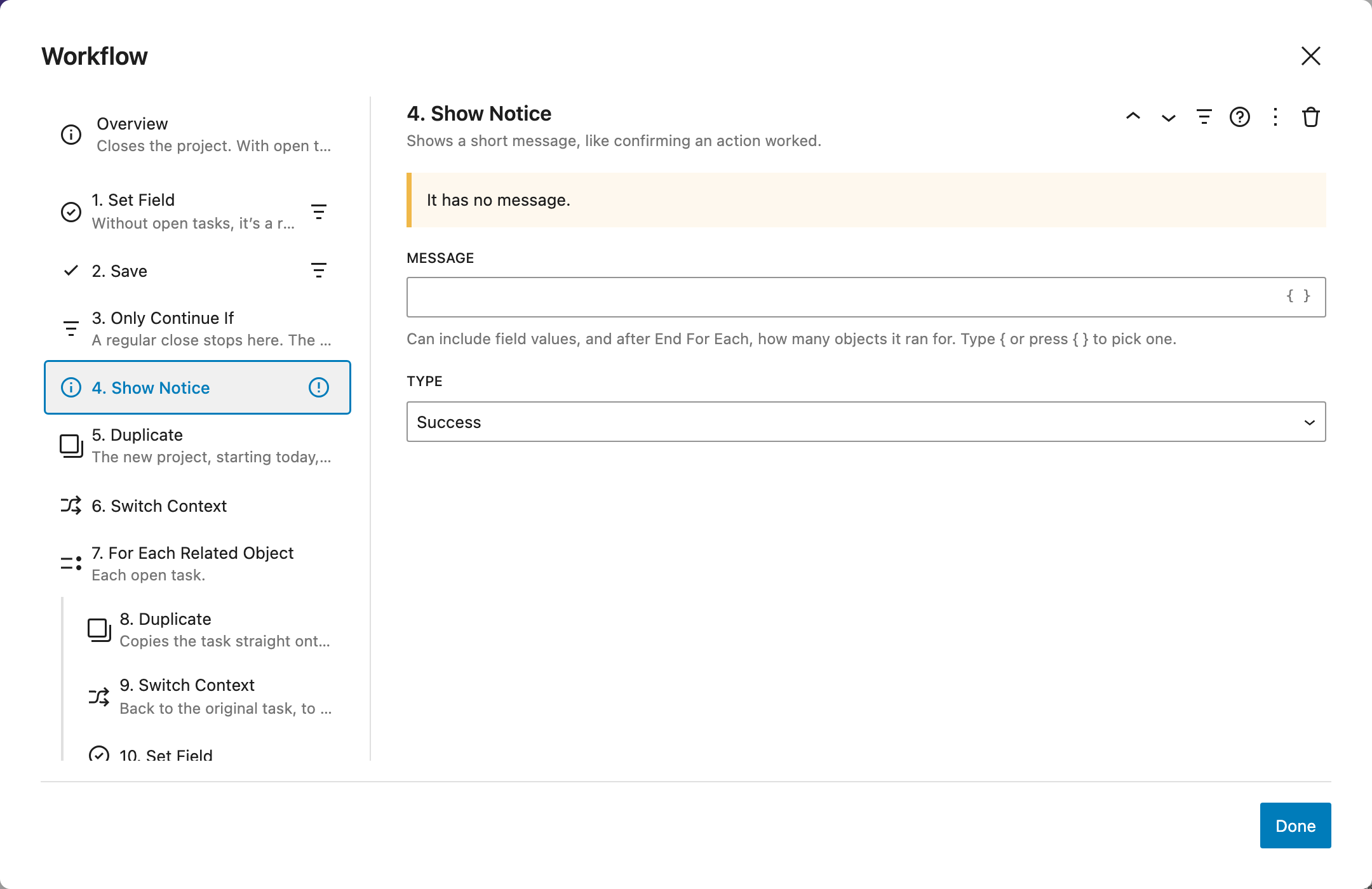
Workflows with steps that aren't set up are hidden or disabled until they are.
Help and context
Click the ? icon in a step's header, or choose Help in its options, to open help beside the settings. It explains how the step works, with tips, and describes its context: what it actually runs with in this workflow.
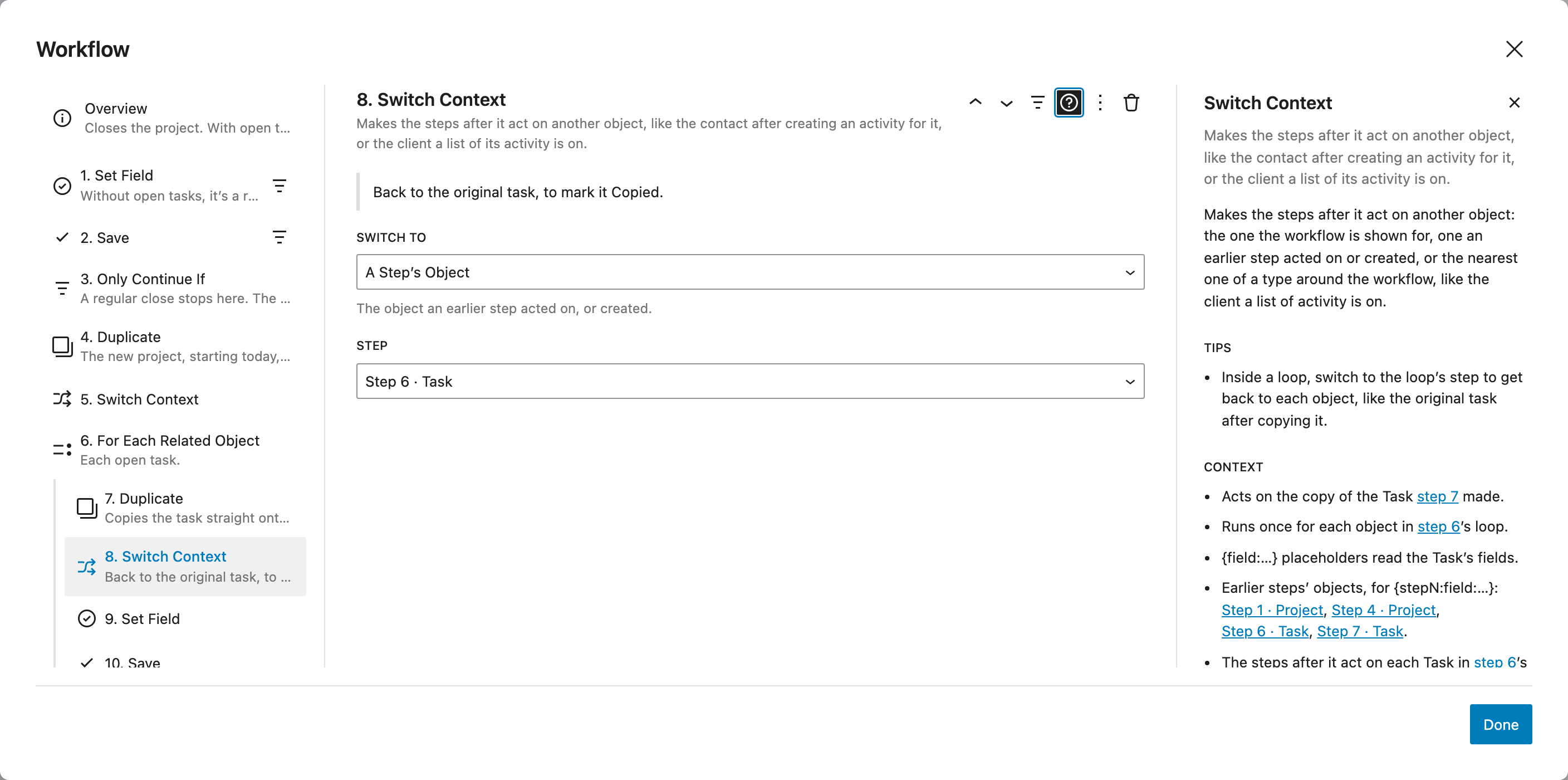
The context says:
- What the step acts on, and where that comes from, like "Acts on the Project the workflow is shown for", "the new Project step 4 created", or "each Task in step 6's loop".
- Whether it runs once for each record in a loop, or for each uploaded file.
- Whether it has a condition, or is turned off.
- Which record's fields
{field:…}placeholders read. - Which earlier steps' records it can use, for
{stepN:field:…}placeholders and "A Step's…" values. - What the steps after it act on.
Steps mentioned in the context are links. Click one to go to it.
If a step should act on something else, like the record an earlier step created instead of the page's record, click Act on Another Object under the context. It adds a Switch Context step before the step, so you can pick what it acts on.
On the Overview, help explains how steps work in general.