Close a project and continue its open tasks
By the end of this guide, you'll have a Continue workflow on your project page. When a project ends with work left over, clicking it:
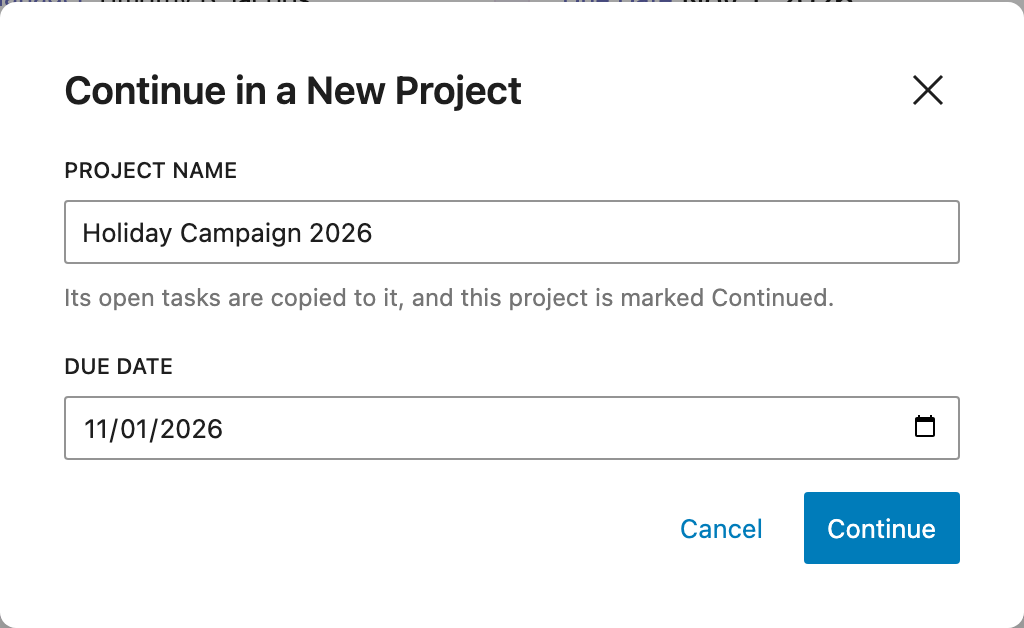
- Asks for the new project's name and due date.
- Creates the new project, starting today.
- Copies each open task to the new project, and marks the original Copied.
- Marks the old project Continued, and links it to the new one.
- Goes to the new project.
If the project has no open tasks, it just marks the project Completed.
What you'll need before you start
- A Projects object type and a Tasks object type, with a relationship so a project has many tasks. The Tasks' Project field must be searchable (relationship fields always are).
- A Status dropdown on Projects with a Continued choice, and one on Tasks with a Copied choice. Make the Tasks' Status field searchable.
- A Next Project relationship field on Projects, linking to Projects.
- A project Item layout to add the workflow to.
Step 1: Add the workflow
- Open your project Item layout in the layout editor.
- Add a Workflow block where you want it, like next to the project's title.
- Click its text and type Continue.
- Click Edit Workflow in the block toolbar.
- On the Overview, click Add Description and describe what it does, so the next person editing it knows. For example: "Closes the project. With open tasks, copies them to a new project, and goes to it. Without any, it just marks the project Completed."
Step 2: Do a regular close when there are no open tasks
- Add a Set Field step. Add the Status field, set to Completed.
- Click the filter icon in the step's header to add a condition. Set Check to the project's tasks, Passes When to None Match the Filters, and filter Status to To Do, In Progress, and Blocked.
- Add a Save step, with the same condition.
- Add an Only Continue If step. Check the project's tasks, At Least One Matches the Filters, with the same Status filter. Set Message When It Stops to "Project completed. It had no open tasks to move."
With open tasks, the first two steps are skipped. Without any, the project is completed and the workflow stops. See Conditions.
Step 3: Create the new project
- Add a Duplicate step. It copies the project.
- Under Change on the Copy, add:
- Project Name, set to Ask, with the help text "Its open tasks are copied to it."
- Due Date, set to Ask.
- Start Date, set to Now.
- In the step's options (⋮), choose Add Note and write "The new project. Later steps link to it as step 4's Project."
- Set the form's title to Continue in a New Project.
This is step 4. Later steps refer to "Step 4's Project". If you move steps around later, those references are updated for you.
Step 4: Copy the open tasks
- Add a Switch Context step, switching to The Workflow's Object, so the next steps act on the old project again.
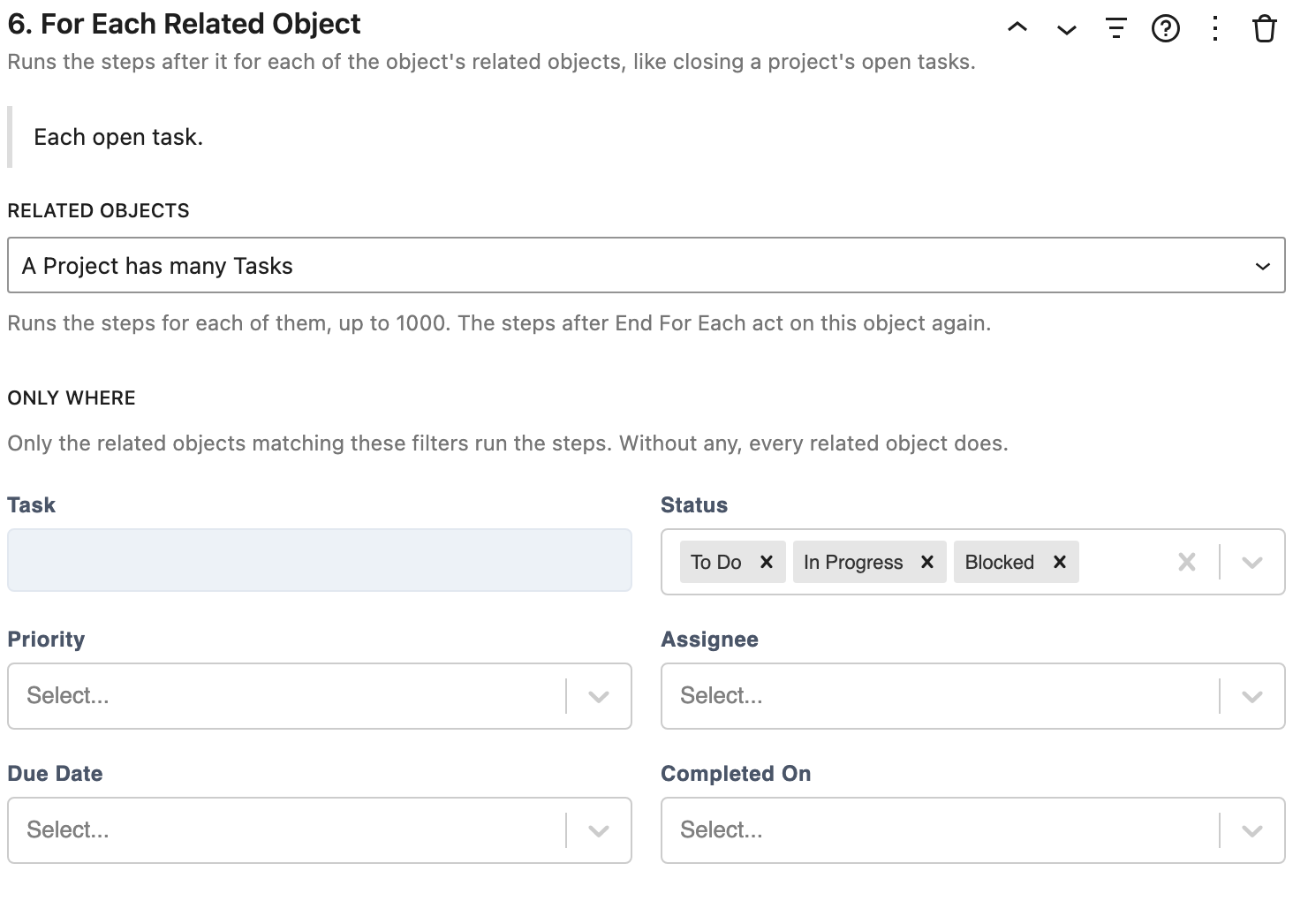
- Add a For Each Related Object step. Set Related Objects to the project's tasks, and filter Status to To Do, In Progress, and Blocked.
- Add a Duplicate step. Under Change on the Copy, add Project, set to A Step's Project, Step 4 · Project. Each task is copied straight onto the new project.
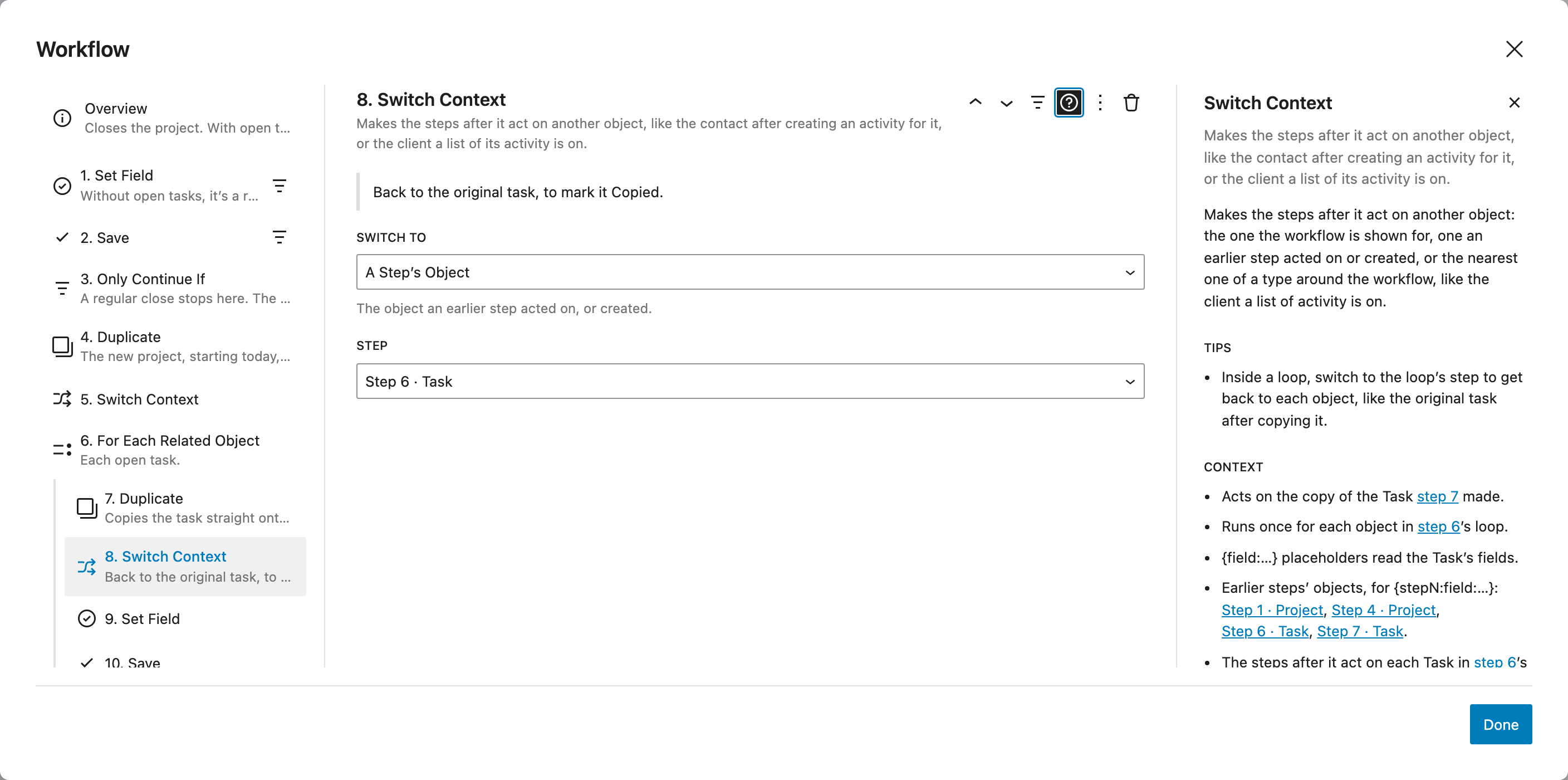
- Add a Switch Context step, switching to A Step's Object, step 6. This goes back to the original task.
- Add a Set Field step, with Status set to Copied, and a Save step.
- Add an End For Each step.
Step 5: Continue the old project, and go to the new one
- Add a Set Field step, with Status set to Continued, and Next Project set to A Step's Project, Step 4 · Project. Then add a Save step.
- Add a Show Notice step with the message "{field:name} project continued, and {done} open tasks copied to it."
- Add a Switch Context step, switching to A Step's Object, step 4.
- Add a Go to Page step, going to the Object Page.
If a step isn't set up right, it's flagged with a warning icon. Select it to see why. To check what any step acts on, open its help with the ? icon and look at its Context.
Step 6: Only show it for open projects
- Close the steps editor and select the workflow.
- In its Visibility settings, only show it when the project's Status is Planning, In Progress, In Review, or On Hold.
- Save your layout.
Step 7: Try it
- Open a project with some open tasks and click Continue.
- Enter a name and due date, and click Continue.
You land on the new project, with the open tasks copied to it. The old project is marked Continued, links to the new one as its Next Project, and its original open tasks are marked Copied.
Try it on a project without open tasks too: it's marked Completed, with a message saying there was nothing to move.