Team
Invite team members
The Team Settings page allows you to manage your team's information and members within Engine Awesome.
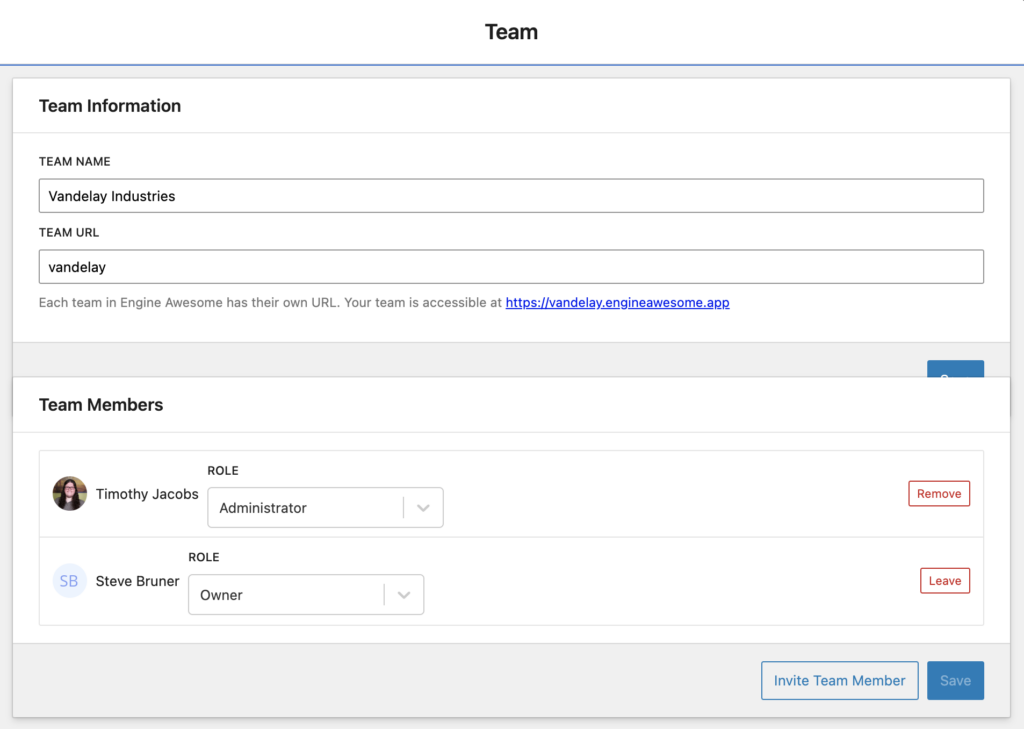
Team Information
In the Team Information section, you can modify the basic details of your team, including:
- Team Name : This field shows your current team name. Type a new name to change it.
- Team URL : Each team in Engine Awesome has its own unique URL, allowing team members to access the team directly. The team URL can be customized by editing the text in the "Team URL" field. In this example, the team URL is set to " vandelay ," meaning the team can be accessed via https://vandelay.engineawesome.app . You can choose any Team URL you want as long as no other Engine Awesome team is using it. We recommend keeping it as short as possible.
Team Members
The Team Members section lists all users who are part of your team, along with their assigned roles. Roles determine the level of access a user has within the team.
Role Assignment : You can see each member's role next to their name. For example, in the image, Timothy Jacobs has the "Administrator" role, while Steve Bruner holds the "Owner" role. The Owner role provides the highest level of permissions, while Administrators have access to manage team settings.
Managing Team Members :
Remove : Administrators can be removed from the team by clicking the "Remove" button next to their name.
Leave : Owners can leave the team by clicking the "Leave" button, although this is a significant action since it can affect the team's management.
Invite Team Member : Use the Invite Team Member button at the bottom of this section to add new users to your team. Clicking this button allows you to send an invitation to join the team.
Invite Link Expiration: Please note that the invite link sent via email will eventually expire, so it's important to click on it as soon as you receive the email. If the link has expired and you need to be reinvited, the account owner should delete your account and add you again to trigger a new invite email.
User Roles
When adding a team member, you must assign them a user role, which determines their level of access and capabilities within Engine Awesome. The available roles are:
- Member : What members can do depends on how you've configured your application. Their access is shaped by the layouts and views you've built for them.
- View Only : Users can view records but cannot create, edit, or delete anything, regardless of how the application is configured.
- Update Only : Users can update existing records but cannot create new ones or delete any data.
- Managers : Managers can create, update, and delete records, offering more control over data management within the system.
- Administrator : Administrators can manage object types, layouts, and appearance settings, providing the ability to configure the application.
- Owner : Owners have the highest level of access, with the ability to manage team users, set up billing, create webhooks, and permanently delete data.
- Billing Manager : Billing managers have access solely to the billing portal and cannot modify other aspects of the system.
Assigning the appropriate role to each team member ensures they have the right permissions for their responsibilities within your organization.
Saving Changes
After making any changes to your team's settings, click Save to apply your updates.
Related guides
- Invite your team, step-by-step walkthrough for adding team members and choosing the right role for each person
- Set up roles so staff only see what they need, a guide to deciding which role fits each person's responsibilities