Workflows
Workflows that do exactly what your app needs
The Workflow block runs a series of steps when someone clicks it. It shows as a button on the page. Each step does one thing, like creating a record, changing a field, opening a modal, or going to another page. Put steps together and a single workflow can do a whole job, like:
- Create a task and open it in a modal to fill in.
- Mark a task done and record today's date.
- Log a call with a client, and schedule the next follow up, in one form.
- Mark every selected task in a list as done.
- Close a project, copy its open tasks to a new project, and go to it.

Workflows replace the older single-purpose Action blocks, like Create New and Go to Page. Anything an action could do, a workflow can do with one or two steps, and much more. See every step in Steps.
Add a workflow
- Open the layout editor where you want the workflow.
- Add a Workflow block. The inserter lists ready-made workflows, like Create in Modal, Save, Delete, Update Fields, Bulk Edit, Duplicate, and Upload Files. Pick the one closest to what you need. You can change its steps afterwards.
- Click the workflow's text to change its label.
- Open its steps to see or change what it does (see Editing steps).
- Save your layout.
Where to edit a workflow's steps
Select the workflow, then either:
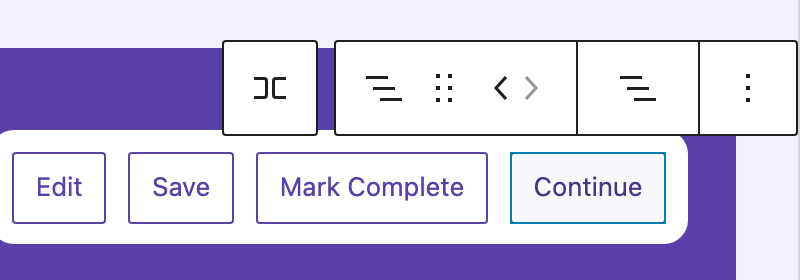
- Click Edit Workflow (the list icon) in the block toolbar, or
- Open the Workflow panel in the sidebar and click Edit Workflow, or click any step to open it directly.
The sidebar's Workflow panel is a summary. It shows the workflow's description and each step, with any notes. Icons on the right mark steps that only run when a condition passes, steps that are turned off, and steps that need attention.
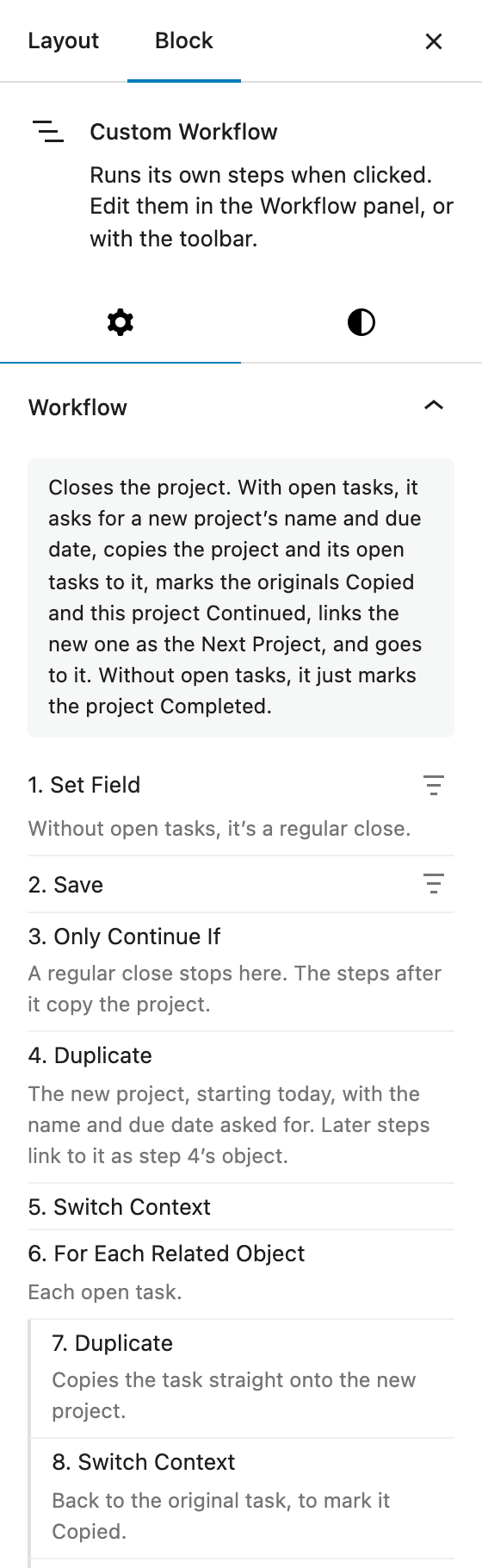
When a workflow's steps match one of the ready-made workflows, the sidebar calls it by that name, like Save. Otherwise it's called Custom Workflow.
How steps run
When someone clicks the workflow, its steps run from top to bottom.
Each step acts on something. A workflow on a record's page starts with that record. A workflow above a list starts with the list. Some steps change what the steps after them act on. For example, after Create Object, the following steps act on the new record. See What a step acts on.
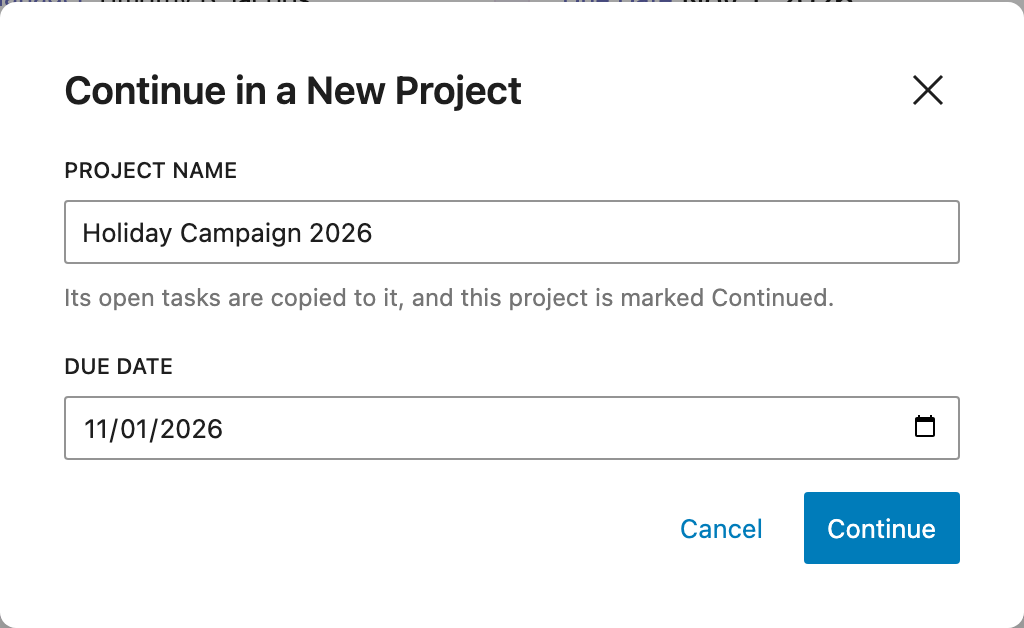
Questions come first. If any step asks for values, like a new project's name, they're all asked in one form before anything changes. Cancelling the form changes nothing.
Cancelling undoes what it can. If a step is cancelled or fails, like closing a modal without saving, the steps before it are undone where possible. For example, a record created by an earlier step is deleted again, unless it was changed since.
Loops run steps for many records. For Each steps run the steps after them once for every record in a list, or every related record, like each of a project's open tasks. See Loops and selecting records.
Conditions decide what runs. A step can be skipped unless records match filters, and the Only Continue If step can stop the workflow altogether. See Conditions.
While a loop runs, the workflow shows its progress, like "3 of 5…", and lists on the page wait to refresh until it's done.
When the workflow is shown
A workflow is hidden when the person viewing the page isn't allowed to do what its steps do, like creating records of a type or changing a record. It's also hidden or disabled when a step isn't set up yet, like a Show Notice step without a message.
In the sidebar's Settings panel:
- Show Only When Editing: only shows the workflow while the record is being edited. Useful for Save and Cancel workflows.
- Show Only When Inline Editing: with Show Only When Editing on, only shows the workflow when its own record is being edited on its own, not when the whole page is.
- Show Only When Rows Are Selected: for workflows above a list, only shows the workflow while records in the list are selected, like a toolbar for them. See Selecting records.
- Display: for workflows whose first step is For Each File, shows the workflow as a button or as a drop zone for files.
You can also use the block's Visibility settings, for example to only show a Mark Complete workflow for projects that aren't completed yet.
In this section
- Editing steps: the steps editor, notes, help, and keeping steps tidy.
- Steps: every step, and its settings.
- Setting fields: setting, copying, and asking for field values, and placeholders.
- Loops and selecting records: running steps for many records.
- Conditions: skipping steps, or stopping, unless records match filters.
To see it all come together, follow Close a project and continue its open tasks.