Create an Account
Get started using Engine Awesome.
Getting started is easy. You can either create an account at EngineAwesome.app, or start with an Application Template .
Starting from an Application Template ? You can skip straight to step 3 - your application and object types are already pre-configured for you.
Visit EngineAwesome.app
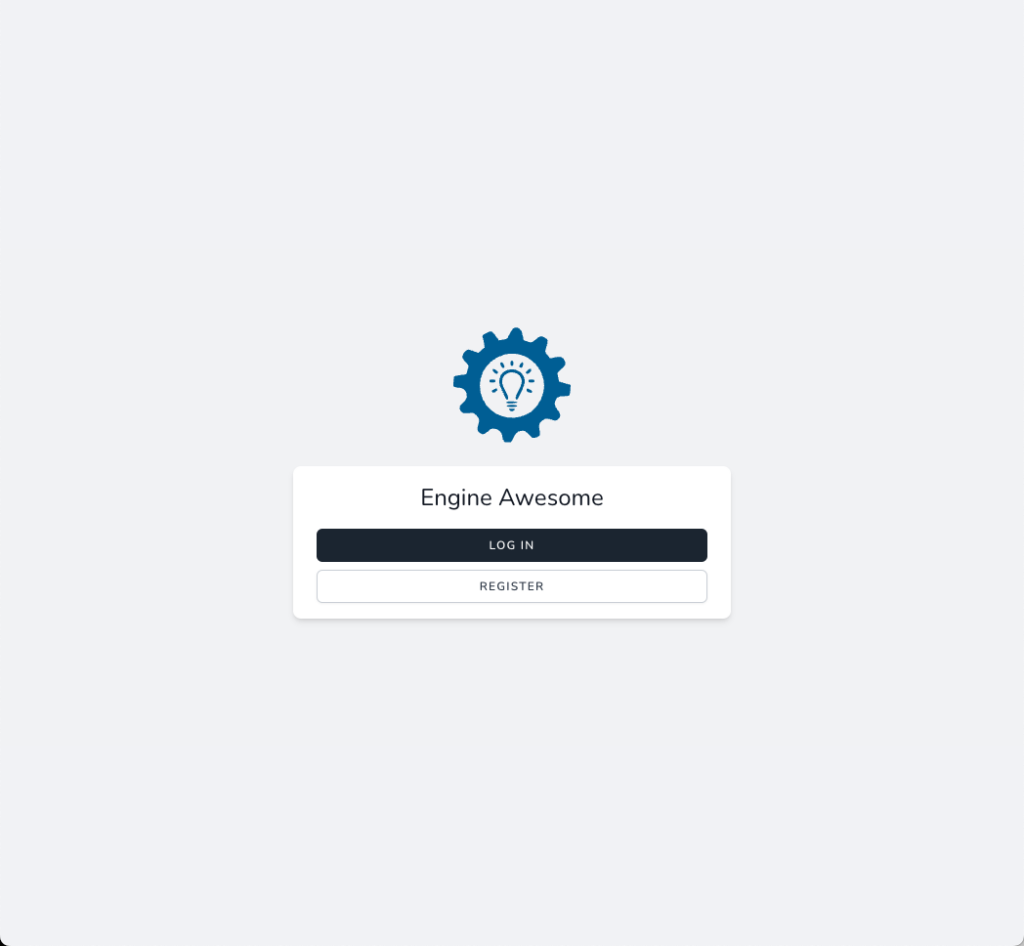
Choose "Register"
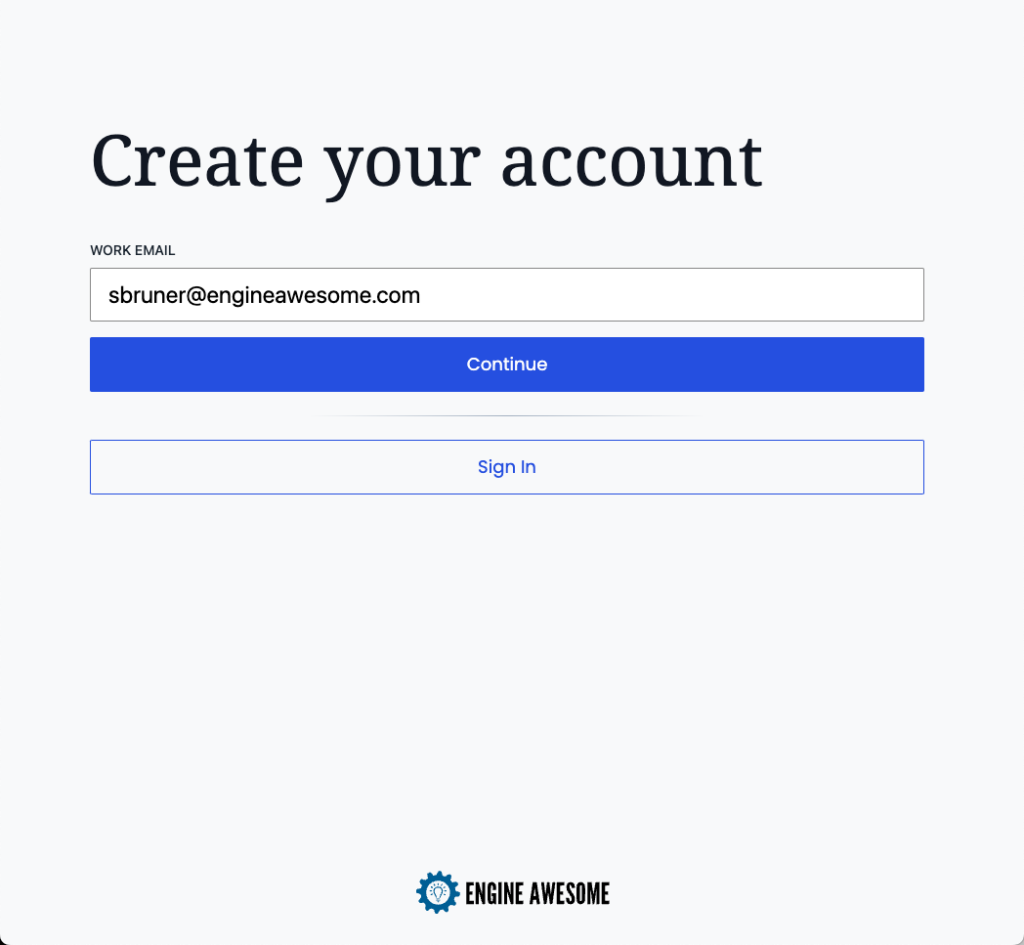
- Enter your work email and click "Continue".
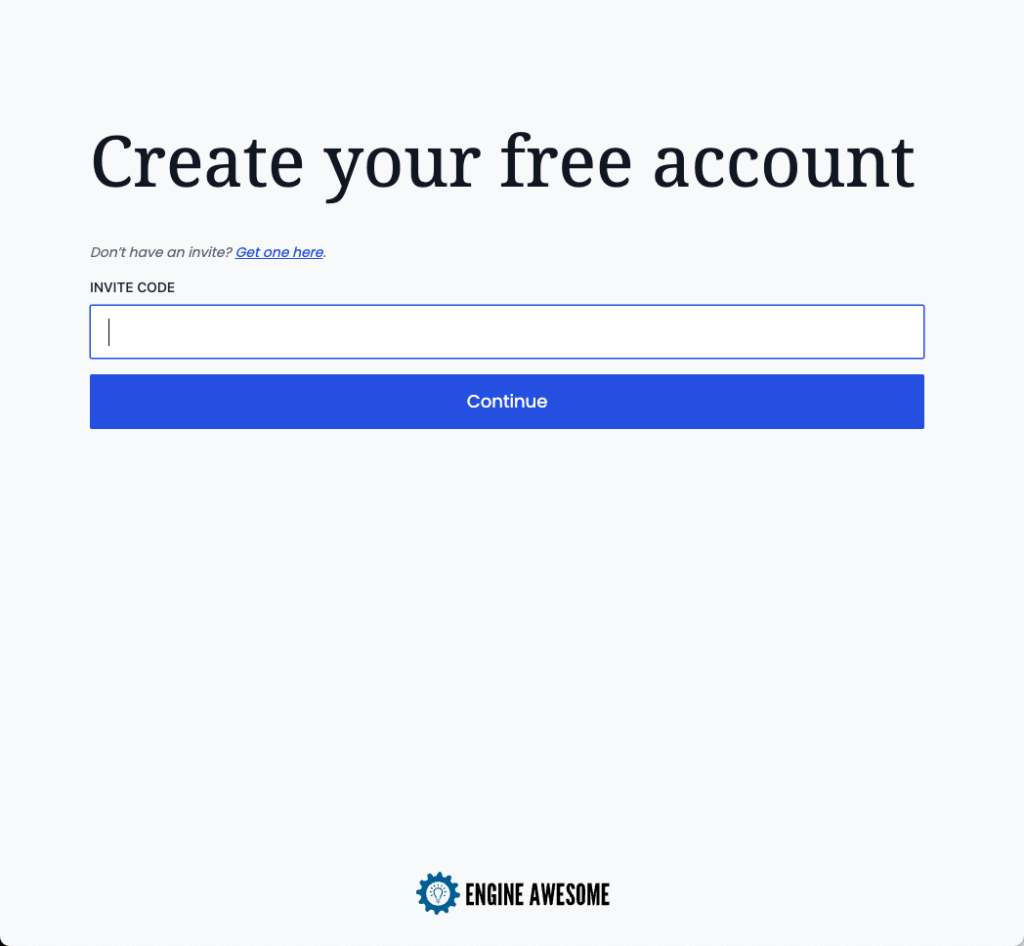
- Enter your "Invite Code". If you don't know your invite code, please contact us .
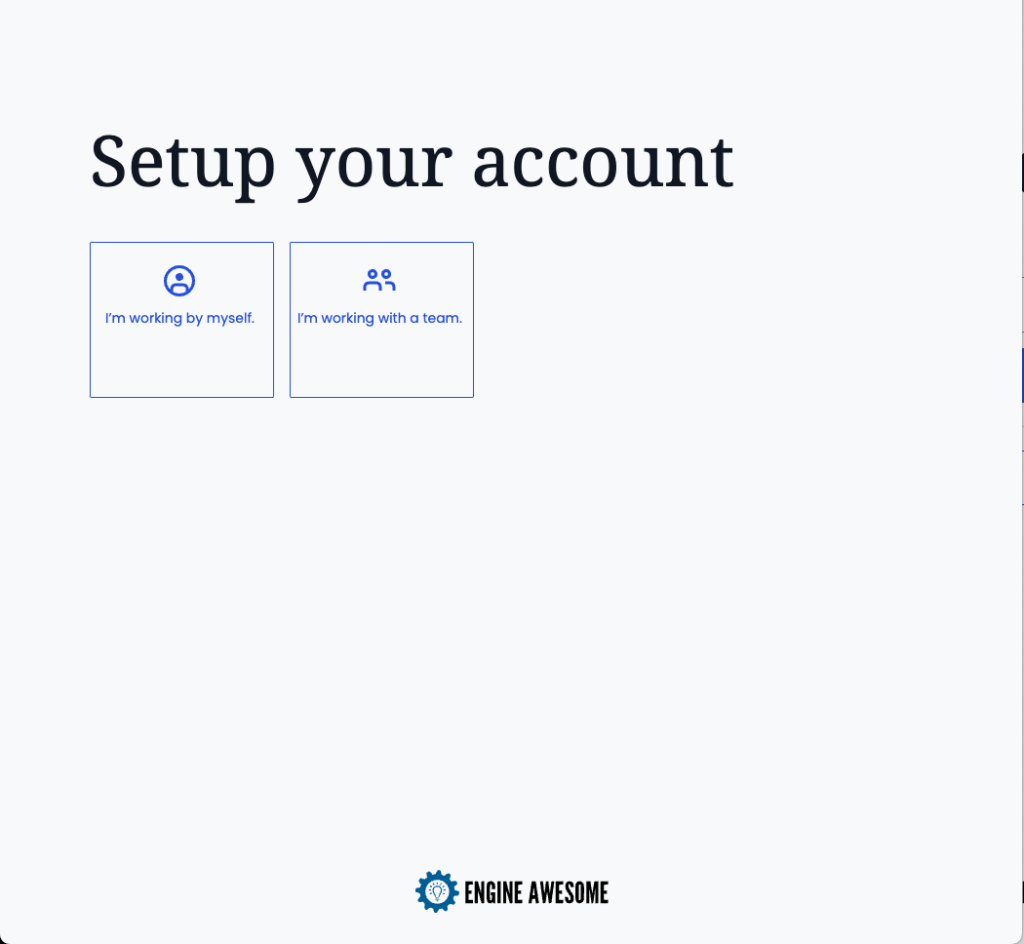
- Choose whether you will be using Engine Awesome by yourself, or with other employees in your company.
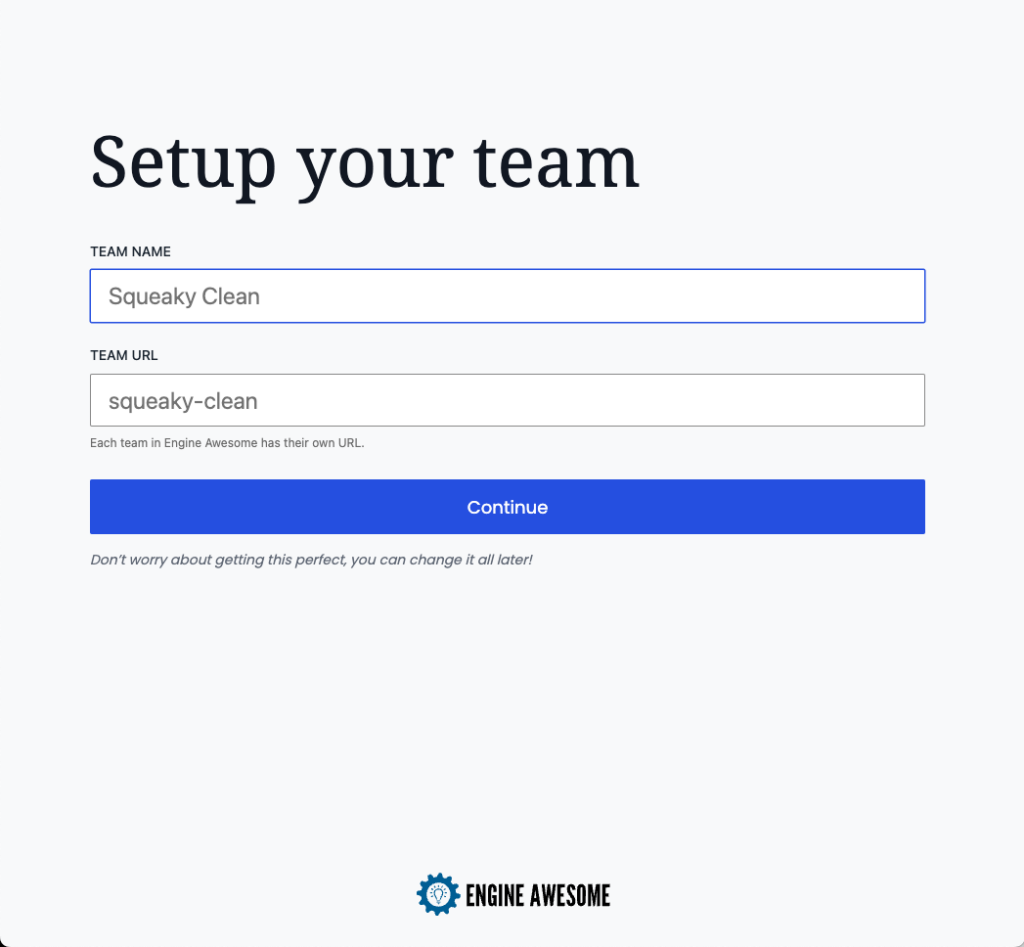
- Enter the name of your Company (e.g. Acme) or Team (e.g. Acme Marketing). Choose a URL for your Engine Awesome application. For example, if you choose "acme", you will access Engine Awesome at "https://acme.engineawesome.app", so it's best to keep it short.
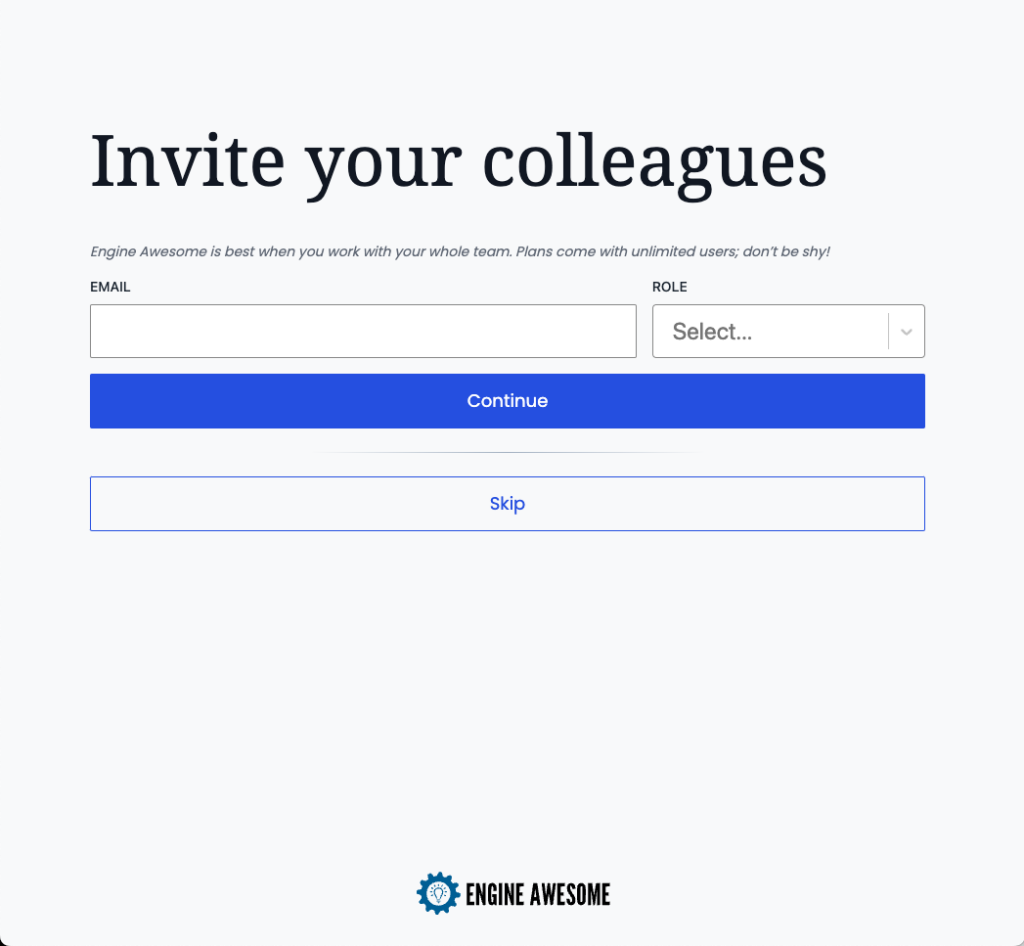
- To invite colleagues enter their email address and choose the appropriate Role. If you are not ready to invite others, you can skip this and invite them later.
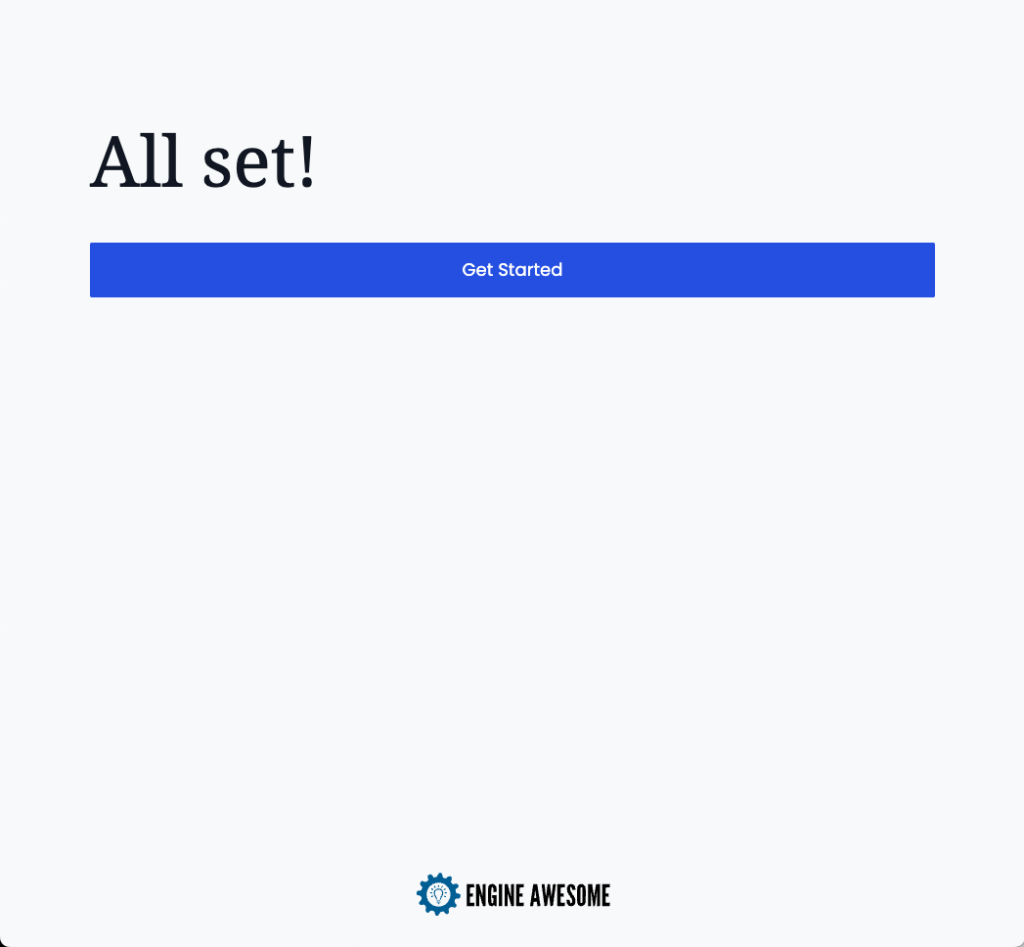
- You're all set!
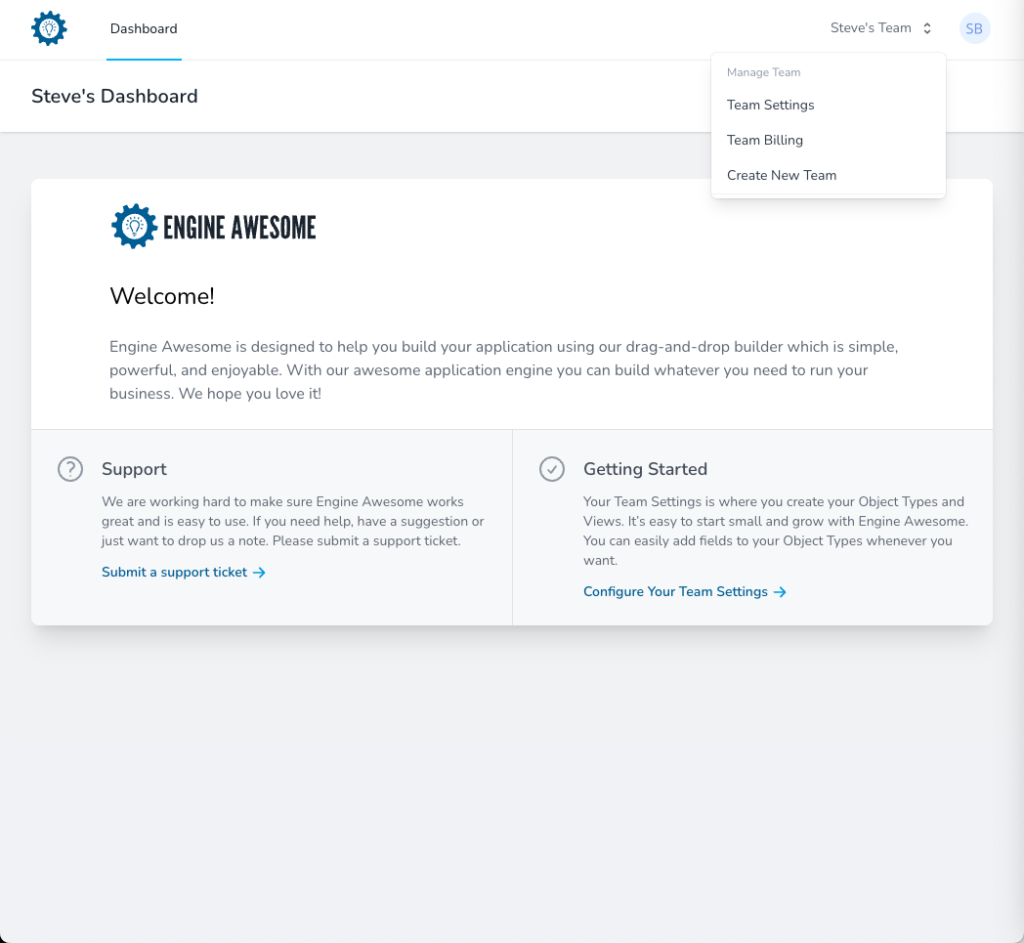
- A 30 day trial is included with Engine Awesome. To make sure you don't have any disruptions enter your billing information. Click on your team name in the upper right and choose "Team Billing". You will be redirected to a secure billing page where you can enter your credit card information.