Conditions
Run steps only when they should
Conditions decide whether steps run, based on whether records match filters. There are two kinds:
- A condition on a step skips that step unless it passes. The steps after it still run.
- The Only Continue If step stops the workflow unless its condition passes. The steps before it are kept.
What a condition checks
A condition uses the same filters as a layout's query filters. Choose:
- Check: what to check.
- This Object: the record the step acts on.
- The List's Objects: for workflows above a list, the records matching the list's filters.
- A related list, like A Project has many Tasks: the record's related records.
- Passes When:
- At Least One Matches the Filters (or It Matches the Filters for one record).
- None Match the Filters (or It Doesn't Match the Filters).
- Filters: what the records are checked for, like a status of To Do, In Progress, or Blocked. Without filters, any record matches, like a project having any tasks at all.
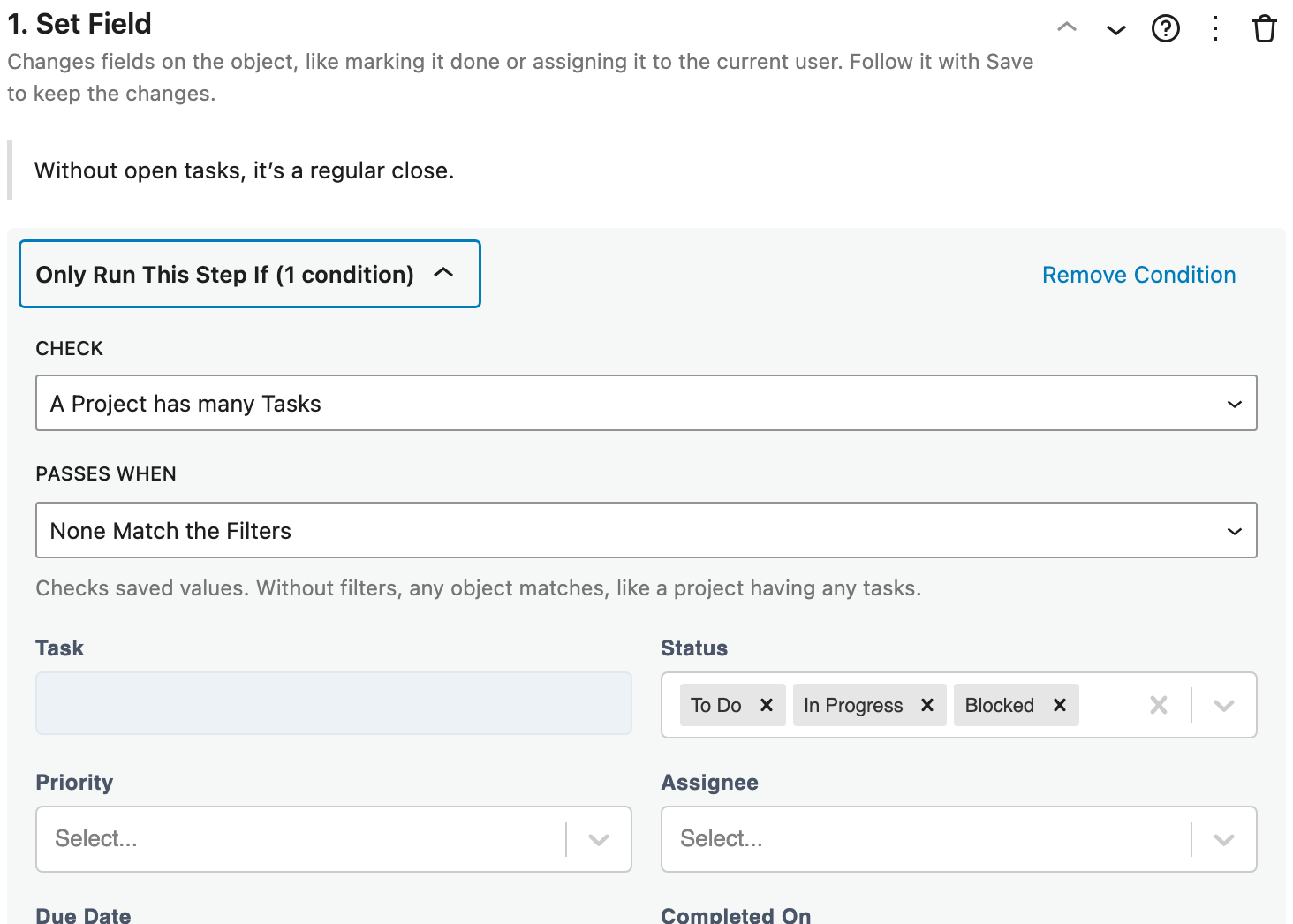
Conditions check saved values, not unsaved changes. Filters only work on searchable fields.
Add a condition to a step
- Open the step in the steps editor.
- Click the filter icon in its header, or choose Add Condition in its options (⋮).
- Choose what to check, when it passes, and the filters.
The condition appears above the step's settings, as Only Run This Step If. Click its title to collapse or expand it. The title says how many conditions it has, like "(2 conditions)". Click Remove Condition to remove it.
Steps with a condition show a filter icon in the step list and the sidebar.
On a For Each step, a condition that doesn't pass skips the whole loop. Inside a loop, conditions are checked for each record.
Only Continue If
Add an Only Continue If step where the workflow should stop unless records match. It has the same settings as a condition, plus:
- Message When It Stops: optional. Shown when it stops, like "This project has no open tasks to move."
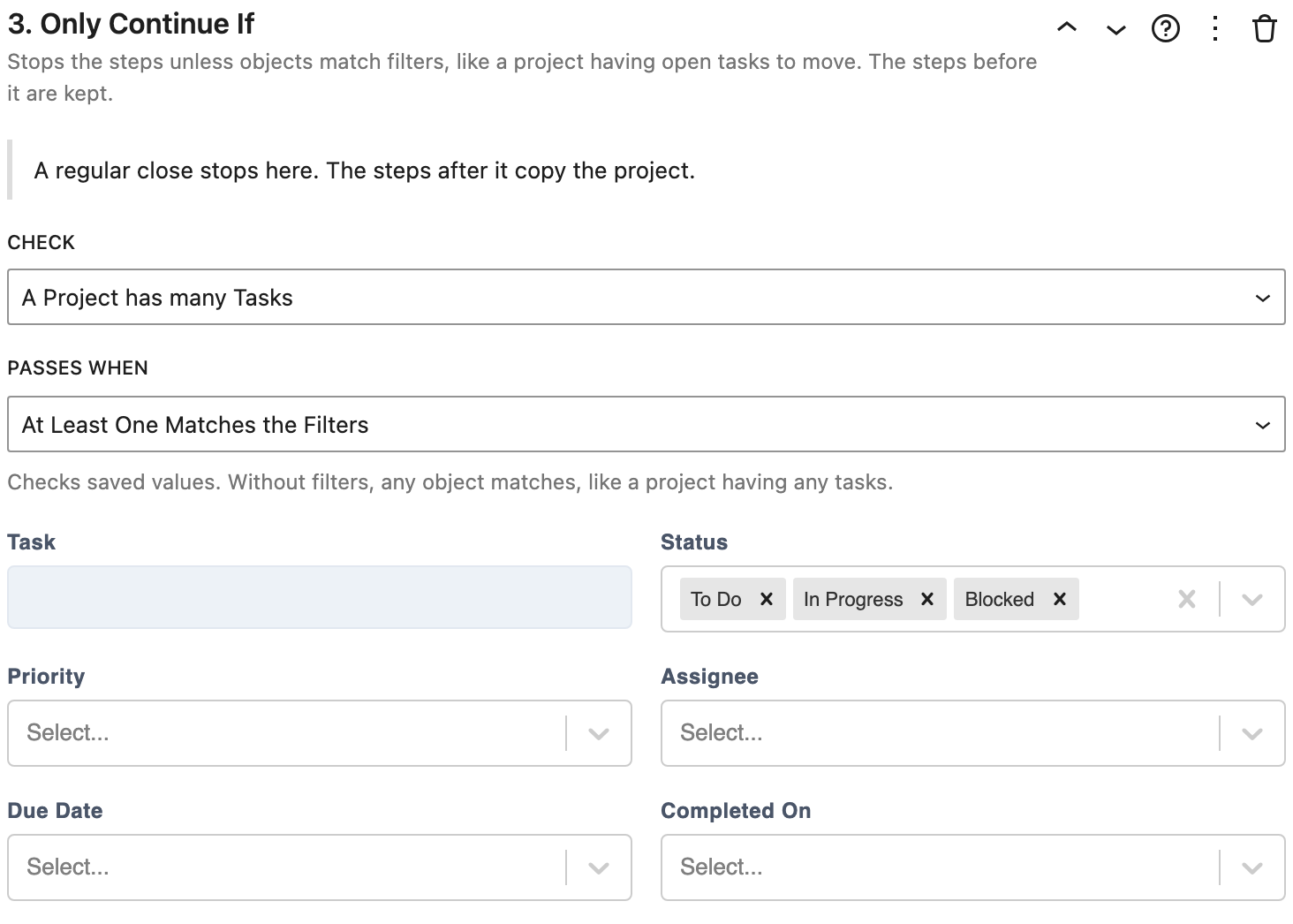
Unlike cancelling, stopping keeps what the steps before it did. Inside a loop, it stops the steps for that record, and the loop moves on to the next one.
Example: a different path when there's nothing to move
A Continue workflow closes a project and copies its open tasks to a new project. When the project has no open tasks, it should just mark the project completed:
- Set Field, Status: Completed. Condition: passes when none of the project's tasks are open.
- Save, with the same condition.
- Only Continue If at least one of the project's tasks is open. Message: "Project completed. It had no open tasks to move."
- The steps that copy the project and its open tasks.
With open tasks, steps 1 and 2 are skipped, and the copying continues. Without any, the project is marked Completed and the workflow stops at step 3. Since the copy's name and due date are only asked for by later steps, the form isn't shown at all.
See Close a project and continue its open tasks for the whole workflow.