Backups
Engine Awesome already protects your data using industry best practices on our infrastructure, but we believe your data belongs to you. The Backups add-on lets you send a complete copy of your application data directly to your own S3-compatible object storage, so you always have an independent copy you control.
Backups include your object types, views, forms, and all app data.
Why use Backups?
Standard Engine Awesome infrastructure backups protect against data loss at the platform level, but they don't support restoring individual records. With the Backups add-on, your data is stored in your own bucket in a portable format, giving you the ability to restore specific records if something goes wrong, without depending on us.
Your Backup settings can be found at:
https://[team-slug].engineawesome.app/settings/backups
Managing Backups
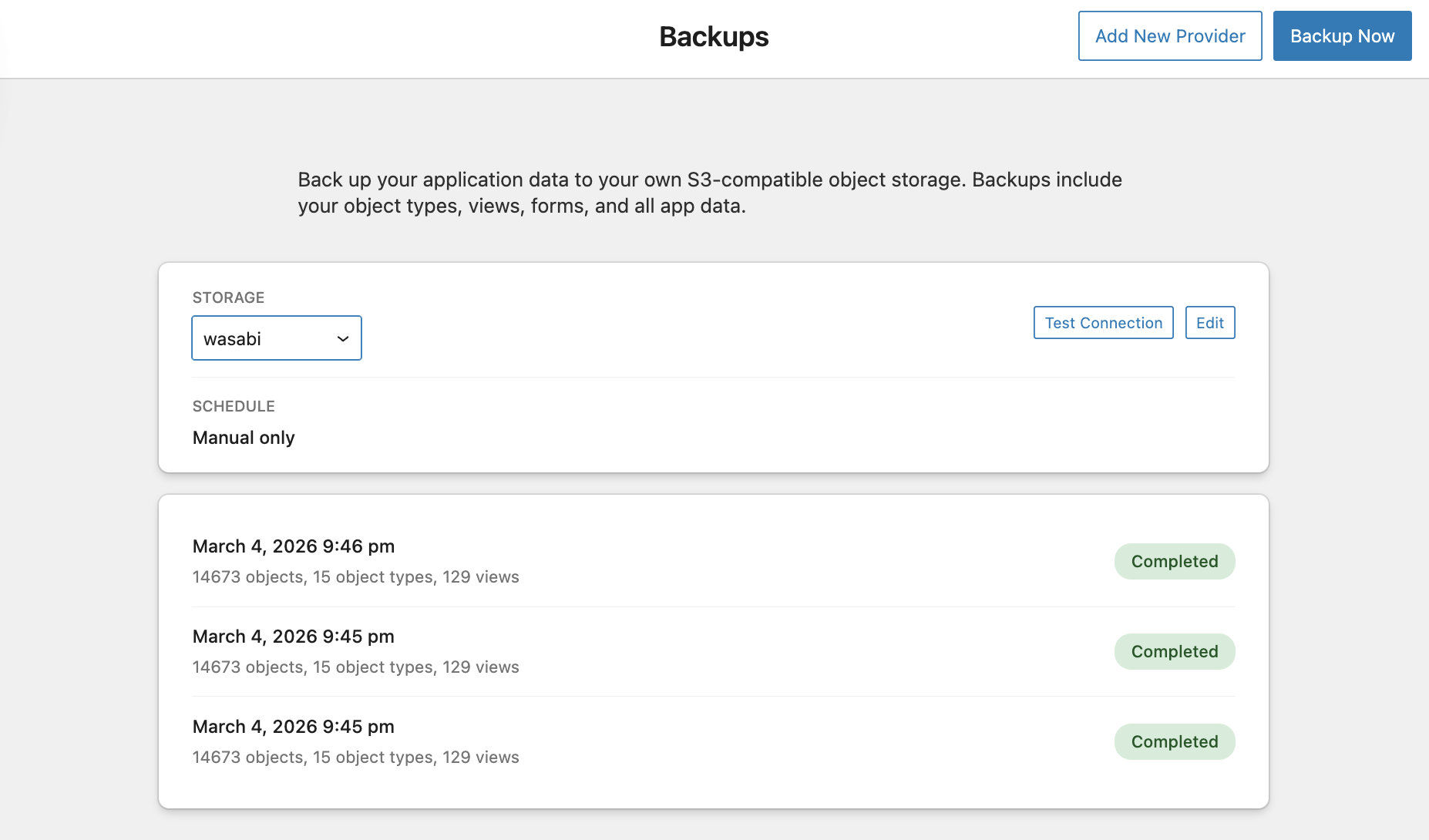
Adding a Storage Provider
Click Add New Provider to connect your S3-compatible storage. Engine Awesome supports any S3-compatible provider, including AWS S3, Wasabi, Backblaze B2, and others.
When setting up a provider, you will need the following credentials from your storage service:
- Access Key
- Secret Key
- Bucket Name
- Region
- Path Prefix (optional)
Once a provider is added, you can:
- Test Connection: Verify that Engine Awesome can successfully connect to your storage bucket
- Edit: Update the provider credentials or configuration
Use the Storage dropdown to switch between providers if you have more than one configured.
Schedule
Backups can run on three schedules:
- Manual only: Backups only run when you click Backup Now
- Daily: One backup is created automatically each day
- Hourly: A backup is created every hour
To change the backup schedule, click Edit on your storage provider configuration.
Running a Backup
Click Backup Now in the top-right corner to trigger an immediate backup. The backup will run in the background and appear in the backup history once complete.
Backup History
The backup history list shows all previous backup runs, including:
- Date and time the backup was created
- Scope: the number of objects, object types, and views included
- Status: whether the backup completed successfully
Each backup is stored in your connected storage provider and can be used to restore your data if needed.