
Field Types

Define what you want to track


In Engine Awesome, fields are the building blocks used to collect, store, and display data for objects. Each field represents a single piece of information, such as a name, phone number, or email. When creating or editing an object type, you will add and customize fields to structure how your data is captured. The fields can be arranged in any order on the screen, and their position in the editor does not impact how they function within your application.
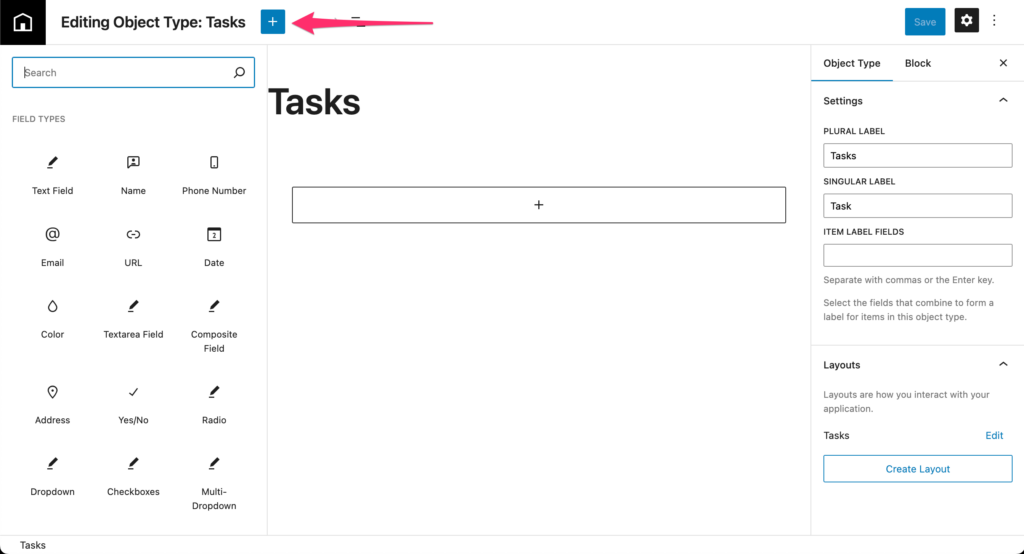
Field type inserter panel showing available field types such as Text, Number, Date, and Relationship

Using the Inserter in Engine Awesome

The Inserter allows you to add various field types to customize your object data structure. By clicking the "+" button, you access the field types menu where you can choose from multiple options.

Additional settings may apply depending on the specific field type, like dropdowns or composite fields. You can access these settings from the sidebar when editing a specific field.

In this section

Text
The Text field stores a single line of short text, names, labels, codes, or any brief value in an Engine Awesome Object Type.
Name
The Name field stores person names in a structured format with first, last, and optional middle name sub-fields.
Phone Number
The Phone Number field stores international phone numbers in a standardized format, including country code and auto-formatting.
Email
The Email field stores email addresses and displays a clickable Email button in layouts to open your default mail client.
URL
The URL field stores web addresses and displays a Visit button in layouts that opens the link in a new browser tab.
Date
The Date field stores date and time values, with manual and automatic variants for tracking created and updated timestamps.
Color
The Color field lets users pick and store a color value using a visual color picker or direct hex input.
Textarea
The Textarea field stores multi-line text for notes, descriptions, and freeform content that needs more space than a single line.
Composite
A Composite field groups multiple related sub-fields into one, keeping your Object Type organized and your forms clean.
Address
The Address field is a pre-built composite field for capturing full mailing addresses with standard and optional sub-fields.
Yes-No
The Yes/No field stores a simple toggle, Yes or No, for any data point that has exactly two possible states.
Radio
The Radio field lets users choose one option from a visible list of radio buttons, all options shown at once for fast selection.
Dropdown
The Dropdown field lets users pick one option from a collapsible list, ideal for longer option sets that need to save space.
Checkboxes
The Checkboxes field lets users select multiple options from a visible list, ideal when more than one choice can apply at once.
Multi-Dropdown
The Multi-Dropdown field lets users select multiple options from a collapsible list, the compact alternative to Checkboxes.
File
The File field lets users upload any type of file to a record, with controls for which file categories are accepted.
Image
The Image field lets users upload and display image files inline within Engine Awesome layouts, ideal for photos and logos.
Media
The Media field supports uploading and managing images, audio, and video files on a record, with all media types enabled by default.
Autogenerated
The Autogenerated field assigns a unique sequential number to each new record automatically, with optional prefix and postfix for custom ID formats.
Money
The Money field stores currency values with the correct symbol and formatting for over 160 supported currencies.
EA User
The Engine Awesome User field links a team member to a record, use it for assignment tracking or to capture who created a record.
Field Group
A Field Group bundles related fields into a named section within an Object Type, supporting per-group access control.