Ask Claude about your Engine Awesome data
By the end of this guide, you'll be able to ask Claude questions like "Which deals closed this month, and what's the total?" and get answers from the records in your Engine Awesome team.
You'll use the Code tab in the Claude desktop app. It runs Claude Code, which can call your team's API with a token that Claude never sees. The token you make is read-only, so Claude can look at your data but can't change it.
What you'll need before you start
- The Claude desktop app, signed in with a paid Claude plan (Pro or higher).
- Owner access to your Engine Awesome team, to create the API token.
Step 1: Install the Engine Awesome skill
A skill teaches Claude how to use Engine Awesome's API.
- Download the skill: engine-awesome-apps.zip.
- In the Claude app, go to Customize → Skills.
- Click +, then Create skill, then Upload a skill, and choose the zip file you downloaded.
Skills you upload here are also available in the Code tab, unless your organization has turned that off.
Step 2: Make a read-only token
Go to Settings → API Access in your team, at
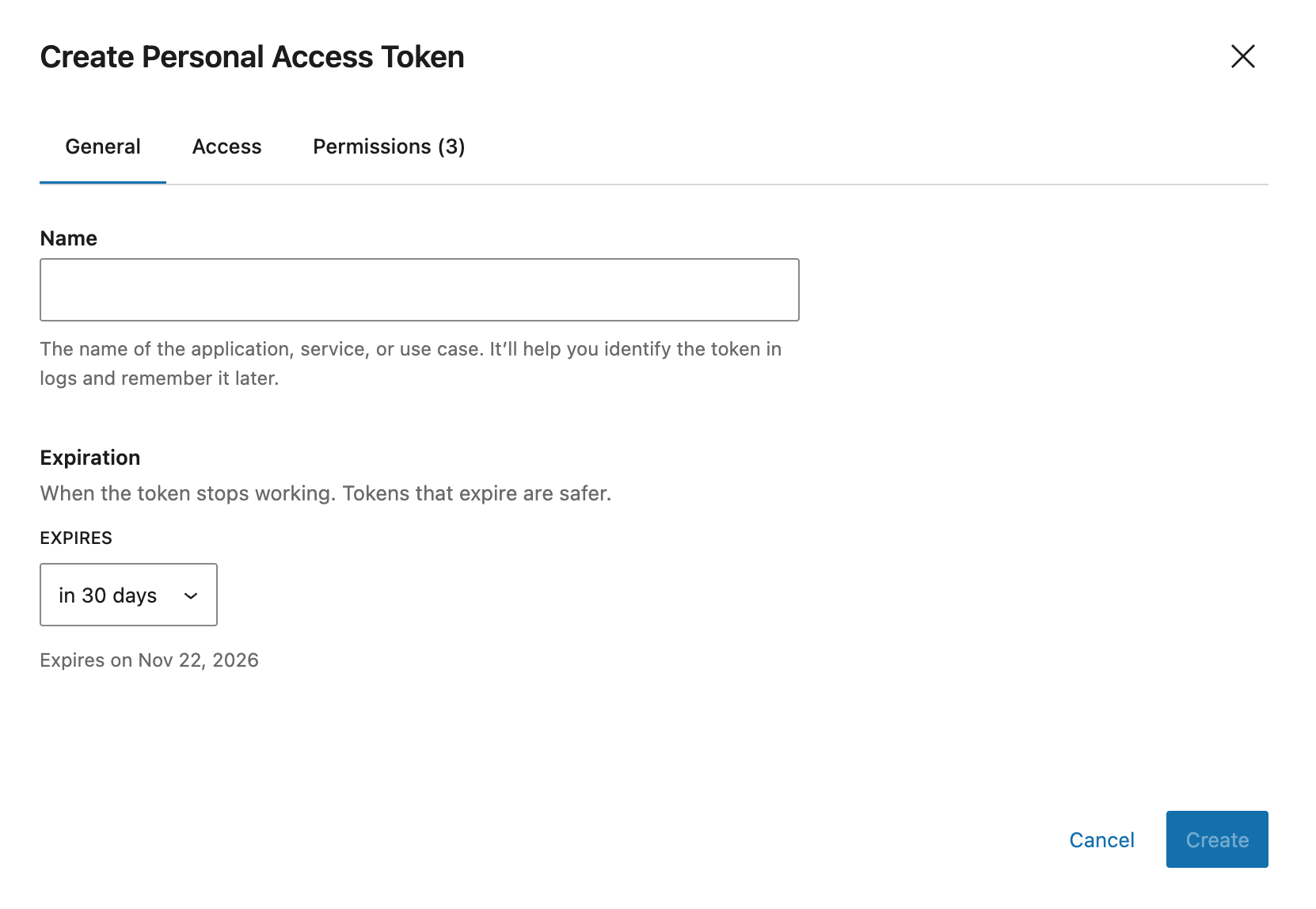
https://your-team.engineawesome.app/settings/api. Only your team's owner can do this.Click Create Token.
On the General tab, give it a name, like
Claude, and choose when it Expires. Tokens that expire are safer.On the Access tab, keep it limited to your team.
On the Permissions tab, uncheck every permission except these three:
object:read, to read records.object-type:read, to see your object types and their fields.view:read, to see your layouts.
The tab should read Permissions (3).
Click Create, and copy the token. You won't be able to see it again.
Step 3: Save the token in a cloud environment
The Code tab can run sessions in a cloud environment. A cloud environment can store the token as a secret for your team's website. It's added to every request Claude sends to your team, so Claude never sees it, and nothing is saved on your computer. This is also where the Engine Awesome skill looks for a token first.
- Open the Code tab.
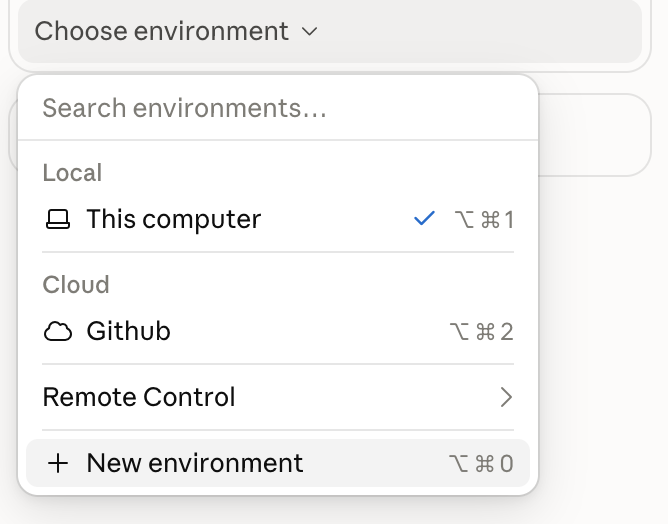
- Click Choose environment under the prompt box, then New environment.
- Choose the Cloud tab, and give the environment a name, like
Engine Awesome. - Click Network access, and add your team's domain, like
your-team.engineawesome.app, so sessions can reach it. A new environment starts with no domains allowed.
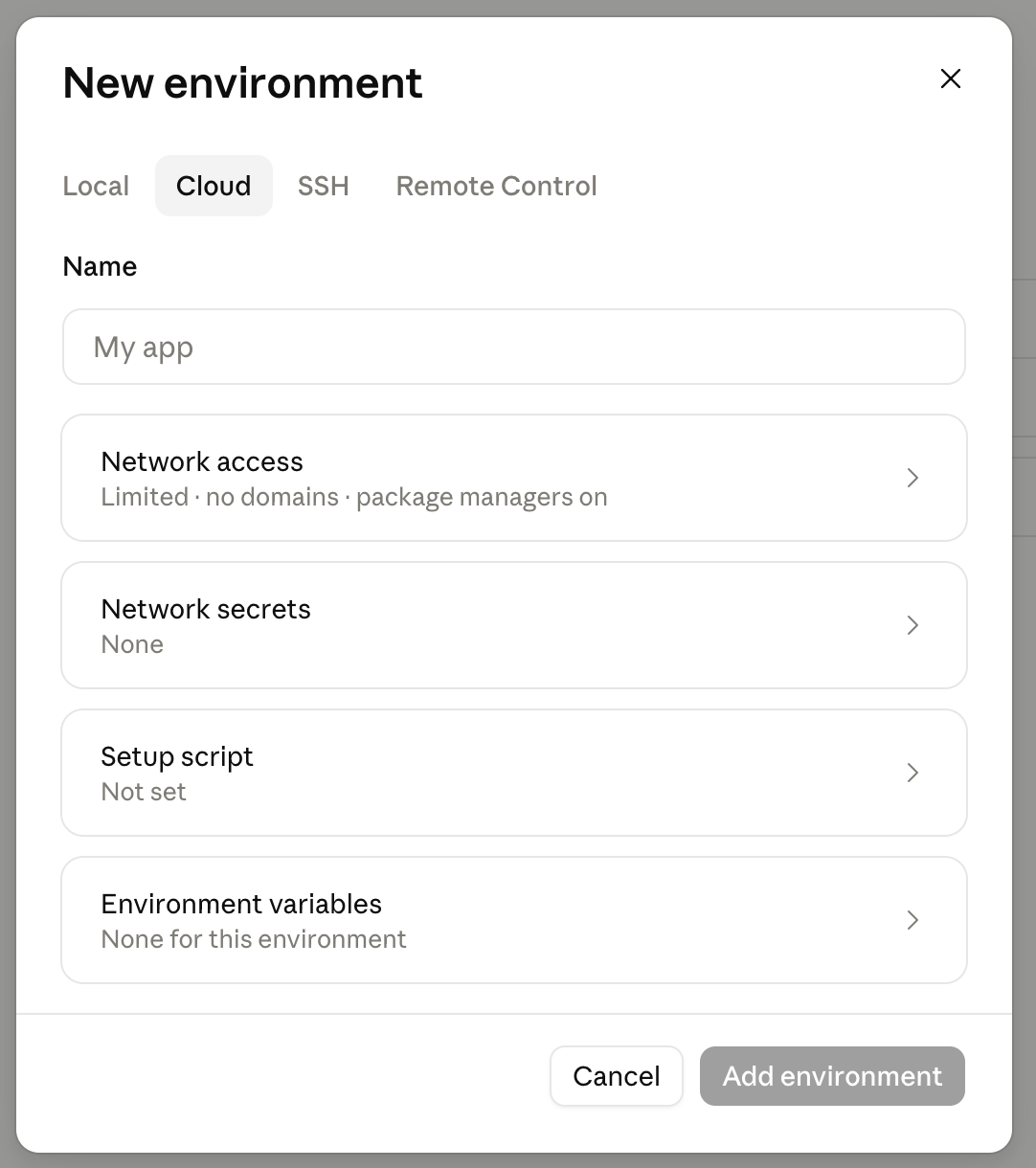
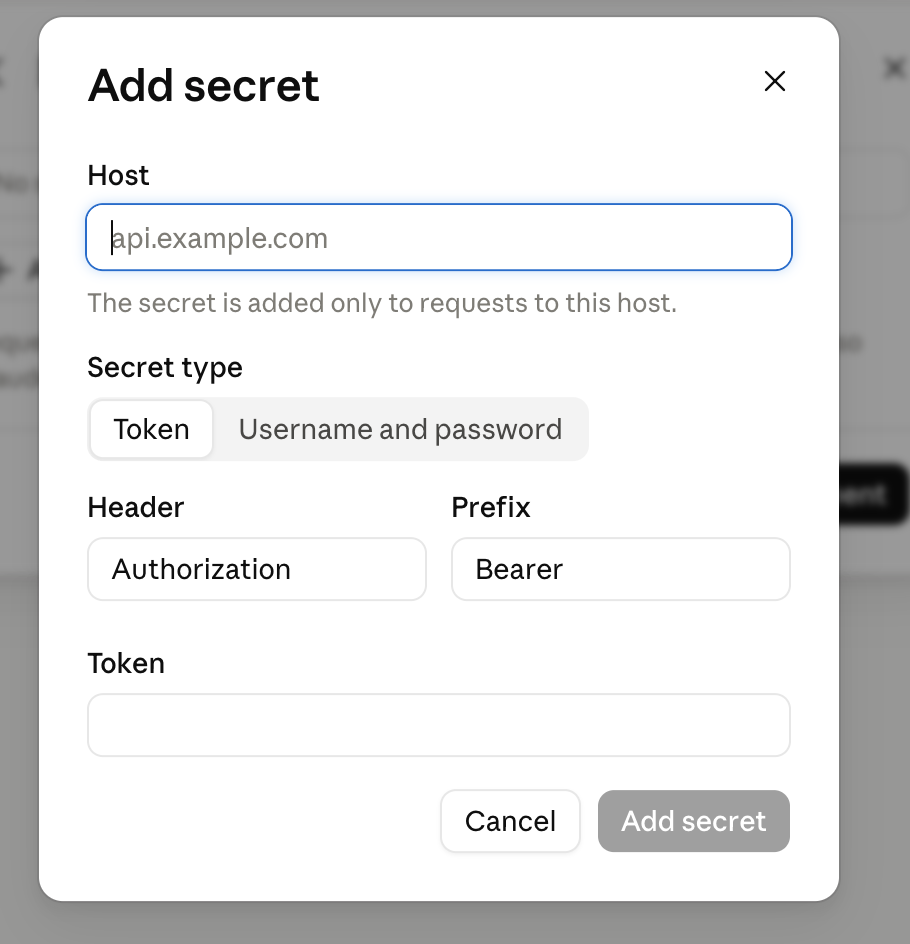
Click Network secrets (called API credentials in older versions of the app), and add a secret:
- Host: your team's address, like
your-team.engineawesome.app. The secret is added only to requests to this host. - Secret type: Token.
- Header: leave it as
Authorization. - Prefix: leave it as
Bearer. - Token: paste the token from Step 2.
Click Add secret.
- Host: your team's address, like
Click Add environment.
Step 4: Start a session and ask a question
In the Code tab, click Choose environment, and choose the environment from Step 3, listed under Cloud.
Enter this prompt, with your team's address in place of
your-team:Use the engine-awesome-apps skill to answer questions about the data in my Engine Awesome team at https://your-team.engineawesome.app. The token is saved as a network secret in this environment and is read-only on purpose: only read data, never change anything. Start by checking the token, then list my object types.Claude checks the token and lists your object types. Then ask your own questions, like:
- "Which deals closed this month, and what's the total?"
- "How many open tasks does each person have?"
- "List the customers we haven't contacted in 90 days."
Claude reads only what the token allows. If you ask it to change something, the request is refused, because the token can't create, update, or delete anything.
Another option: keep the token on your Mac
If you'd rather not use a cloud environment, a Local session can read the token from a file only you can read. This takes one command in Terminal.
Open Terminal and run this command. It creates the file and opens it in TextEdit:
mkdir -p ~/.config/engine-awesome && touch ~/.config/engine-awesome/token && chmod 600 ~/.config/engine-awesome/token && open -e ~/.config/engine-awesome/tokenPaste the token into the file, save it, and close TextEdit.
In the Code tab, click Choose environment, and choose This computer, under Local.
Choose a folder. An empty one, like
~/Documents/Engine Awesome, is fine. Your data isn't stored there.Leave the permission mode on Manual, so Claude asks before running anything.
Enter this prompt:
Use the engine-awesome-apps skill to answer questions about the data in my
Engine Awesome team at https://your-team.engineawesome.app. The token in
~/.config/engine-awesome/token is read-only on purpose: only read data, never
change anything. Start by checking the token, then list my object types.
When Claude first contacts
your-team.engineawesome.app, click Always allow on the card that appears, and approve the commands it runs.
~/.config/engine-awesome/token, use the cloud environment in Step 3 instead. Don't paste the token into the chat to work around it.Why not the regular Claude chat?
The chat can use uploaded skills too, but two things get in the way:
- Network access. The chat's code sandbox has to be allowed to reach your team's domain. That's set under Code execution and file creation and Allow network egress, in Settings → Capabilities, or in your organization's settings on Team and Enterprise plans, where only an owner can add
engineawesome.appto the allowed domains. - Nowhere to keep the token. The chat has no place to store secrets, so you'd have to paste the token into the conversation, where it's saved. The skill treats a pasted token as exposed and replaces it.
What to do next
- Personal Access Tokens / API Keys, every permission a token can have
- API reference, the endpoints Claude uses to read your data